How to create a registration form with payment for free
Event planning can feel overwhelming, especially if you're new to it or it's just a side project. If your event involves paid tickets, that adds another layer. We can reassure you: it really doesn't have to be complicated.
The problem most people run into is handling registration and payment as two separate steps. Someone fills out a sign-up form, then you follow up with a bank transfer request or a payment link. Or you send a separate PayPal email. Or you trust people to bring cash. This leaves you with chasing payments and manually matching names to transactions.
The simple fix is to combine registration and payment into one form. Using just one link people both fill in their details and pay. You get your attendee list and the money at the same time. And don't worry, you don't need to use professional event management platforms for this. A simple registration form created in an online form builder is more than enough!
This guide explains how to set that up, and what to include in your form to make the whole registration and check-in process run smoothly.
How to set up an event registration form with payment
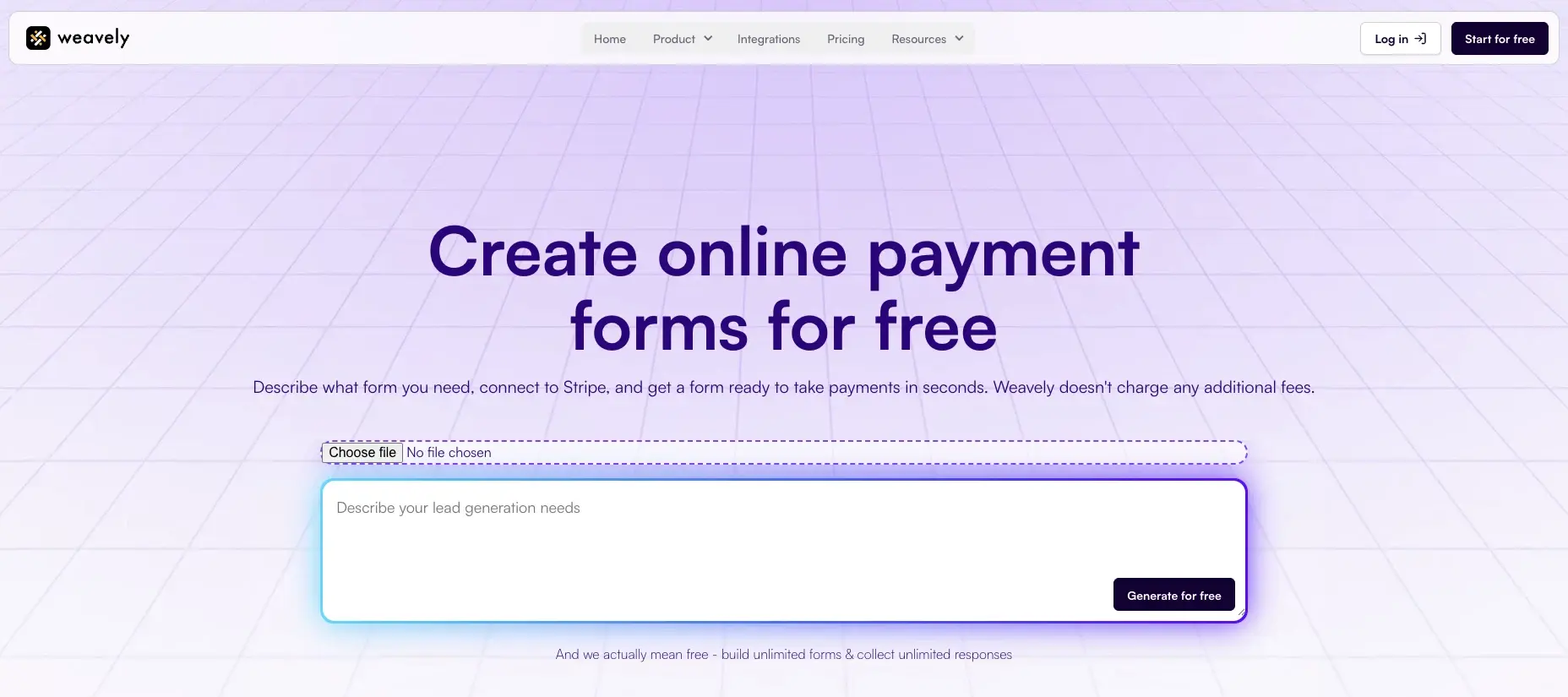
There are several form builders that let you collect payment through a registration form. In this section, we'll walk you through the setup in Weavely - an AI form builder that generates the entire form from a simple description, with Stripe payment built in. What's particularly good is that Weavely doesn't charge any additional fees for payment collection. The tool is absolutely free to use and takes a couple of minutes to create payment forms, as most of the work is done by AI.
Here’s how it works:
- Describe your form: open Weavely payment form generator and type what you need, or provide a document with instructions. Something like: “Create a workshop registration form with payment, name, email, number of attendees, and dietary requirements.” The AI generates the full form in seconds, including conditional logic and styling.
- Connect your Stripe account: go to the settings and link your Stripe account. Set the payment amount in Stripe. This way, a payment field will be added to your Weavely form. Add a clear description so that attendees know what they’re paying for.
- Publish and share: copy the form URL and share it wherever you’re promoting the event.
It is really as easy as that!
In the settings, you can also enable automated email notifications for yourself to get notified every time your attendees submit a form and a payment comes through.
Payments in online registration forms
It helps to understand what actually happens when someone pays through a registration form with a Stripe payment, both from your side and the attendee’s side.
The attendee experience
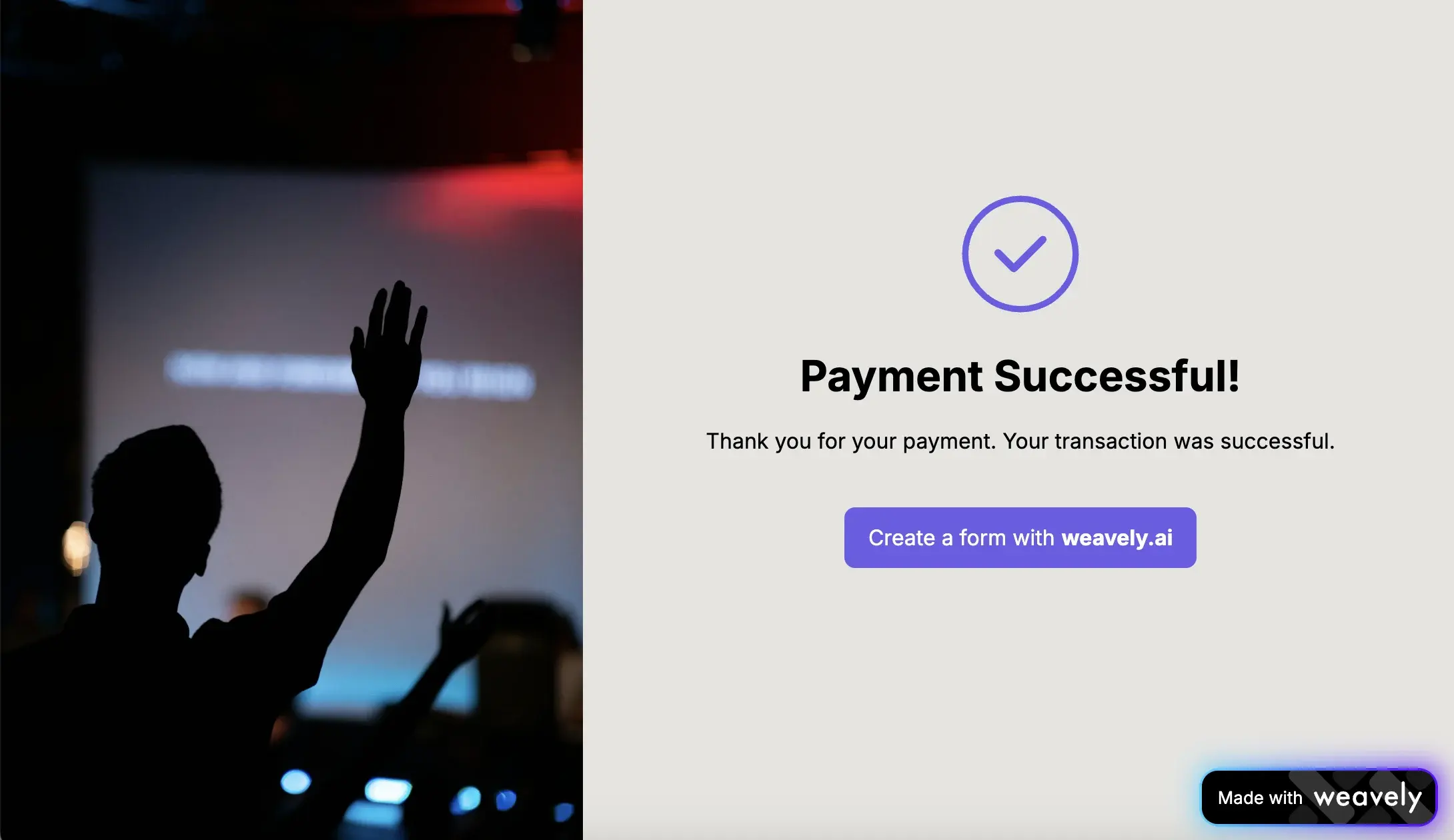
When someone opens your registration form, they move through it like any other form, first filling in their name, email, and any event-specific questions you’ve included. Payment comes at the end. At that point, they’re redirected to a secure Stripe checkout page where they enter their card details. Once payment is confirmed, they’re returned to your form’s confirmation page, which acts as their receipt.
The whole process takes about two minutes. From the attendee’s perspective, it feels like a single flow.
What happens on your end
All form submissions land in your Weavely results, regardless of payment outcome. Each response includes attendee information and a payment status column (completed or failed), so you can immediately see whose payment came through and whose didn't. If you have a spreadsheet connected, responses flow there too with the payment status included. Stripe handles the money movement. Funds are deposited to your bank account on Stripe’s standard payout schedule (typically 2–7 days depending on your country and account setup).
If a payment fails, due to a declined card or insufficient funds, the submission still appears in your results with a failed payment status. The attendee can try again with a different card. You can see at a glance who still needs to complete payment and follow up if needed.
What Stripe fees look like
Stripe charges a transaction fee on each payment. For example, in Europe this is typically 1.5% + €0.25 for European cards, and slightly higher for non-European cards. This comes out of what you collect, so it’s worth factoring into your ticket price. For example, on a €50 ticket, the Stripe fee is around €1. There are no monthly fees or setup costs — you only pay when you collect a payment.
Practical tips for collecting payment through registration forms
State your refund policy in the form
If you have a no-refunds policy, say so before payment. If you offer refunds up to a certain date, include that. Attendees will ask either way — having it written in the form saves the conversation later.
Send the confirmation message
In Weavely, you can set up emails on submission, which will send an email to your respondents confirming their submission and showing them their answers. However, for spam and fraud protection purposes, it is impossible to tweak the copy of the confirmation email. Therefore, if you want to send a custom receipt, you can connect Weavely to a third-party email marketing tool, like Mailchimp or Brevo. The confirmation page and email that go out after payment should include the event name, date, location, and what they paid.
Set a clear deadline or capacity limit
If spots are limited, say so in the form description. “Only 20 places available” creates urgency without pressure tactics. You can also close the form automatically when you reach capacity.
Connect your form to Google Sheets, Notion, or any other project management tool
Set up the Google Sheets integration before you go live. That way, every registration lands in your spreadsheet from the start — no retroactive export needed. You’ll have your check-in list ready without any extra admin.
Be prepared to issue VAT invoices
If you're running a professional or corporate event, some attendees may need a VAT invoice for accounting or expense purposes. This isn't something you handle in the form itself, but you can just add a line to your confirmation page explaining how they can request one, and process those manually after the event.
Registration form with payment: use cases
Registration forms with payment work for any paid event where you need to confirm attendance and collect money in one step:
- Event or reunion registration
For a class reunion, community dinner, or social event: name, email, phone number, plus one (yes/no), dietary requirements, payment. The spreadsheet output gives you a door list and a comms list in one.
- Course or workshop sign-up
For a paid class or skills workshop: name, email, experience level, how they heard about you, payment. You can set the form to close automatically once you reach capacity.
- Conference or professional event
For a conference registration form with payment: name, job title, company, session preference, dietary requirements, payment. Company name is useful if attendees need to expense the ticket.
- Retreat or multi-day programme
For a wellness retreat or travel programme: name, email, phone, dietary needs, health considerations, emergency contact, room preference (single/shared), payment. More fields are appropriate here because the organiser genuinely needs the information.
- Childcare programme or class
For a children’s activity: parent name, child’s name and age, emergency contact, allergies, consent checkbox, payment. The form doubles as your intake and safeguarding record.
Frequently asked questions
Can you create a registration form with payment in Google Forms?
Not natively, as Google Forms doesn’t have built-in payment processing. To collect payments in Google Forms, you’d need to use a third-party add-on like Payable Forms and a separate Stripe or PayPal account, which adds complexity. A dedicated form builder with payment built in (like Weavely) is a simpler option if payment is a core requirement. Weavely also allows you to import a Google Form and add a payment to it.
Is registration form with payment free to set up?
Weavely’s free plan includes unlimited forms and responses, so you can set up a registration form with payment at no cost. Stripe’s standard processing fees apply when you collect payments (typically 1.5–2.9% + a small fixed fee depending on your location).
What payment methods does it support?
Weavely processes payments through Stripe, which supports all major credit and debit cards.
Can I see who has paid and who hasn’t?
Because payment is part of form submission, anyone in your spreadsheet has already paid. There’s no separate reconciliation step — your attendee list and your payment records are the same list.

Florian is the co-founder and CEO of Weavely, where he does a bit of everything: from product and fundraising to making YouTube videos and writing for the blog. He holds a PhD in computer science and sits on the board of No Code Belgium, the country's no-code community, after more than seven years as a researcher and business developer at Vrije Universiteit Brussel. He writes the hands-on tutorials here, drawing on both an academic background and the day-to-day reality of building a form tool from the ground up. Based in Brussels.