How to set up Google Forms logic (+ how to do it faster with AI)
In this article, we’ll walk you through how to set up conditional logic in Google Forms and will compare it to setting logic with the help of AI.
We will take a simple feedback form as an example to show step-by-step how to apply logic in Google Forms. We will then do the same with Weavely that lets you build forms with AI. Using the same example, it will be easy to compare the result and time spent. And of course we will also cover you all the types of conditional logic you can set up in Google Forms.
Google Forms conditional logic capabilities
Google Forms offers basic conditional logic through “Go to section based on answer,” but only for multiple choice and dropdown questions. This allows for simple branching across sections. However, it lacks more advanced capabilities like showing or hiding individual questions, applying logic to checkbox or star rating fields, using multiple conditions, or creating dynamic form behavior. There’s also no visual logic overview, which makes managing complex forms difficult. For anything beyond simple flows, Google Forms is very limited.
Major pain points:
- Duplicating sections to simulate conditional fields
- No visibility into which question triggered which branch
- Can become hard to manage even with 3–4 logic paths
Example: a simple feedback form scenario with logic
Let’s say you want to collect customer feedback and show follow-up questions based on satisfaction level.
The structure:
- Email (optional)
- How satisfied are you?
- Based on the answer:
- 4-5 stars → Ask for a testimonial
- 3 → Ask what could be improved
- 1-2 → Ask what went wrong + offer follow-up
- If they want follow-up → Ask for an email address
How to add conditional logic to Google Forms?
Google Forms logic is not hard to set up, but it’s not very intuitive either. Because of its limitations, many users end up looking for tutorials. One of the biggest drawbacks is that the only supported conditional questions in Google Forms are multiple choice or dropdown questions.
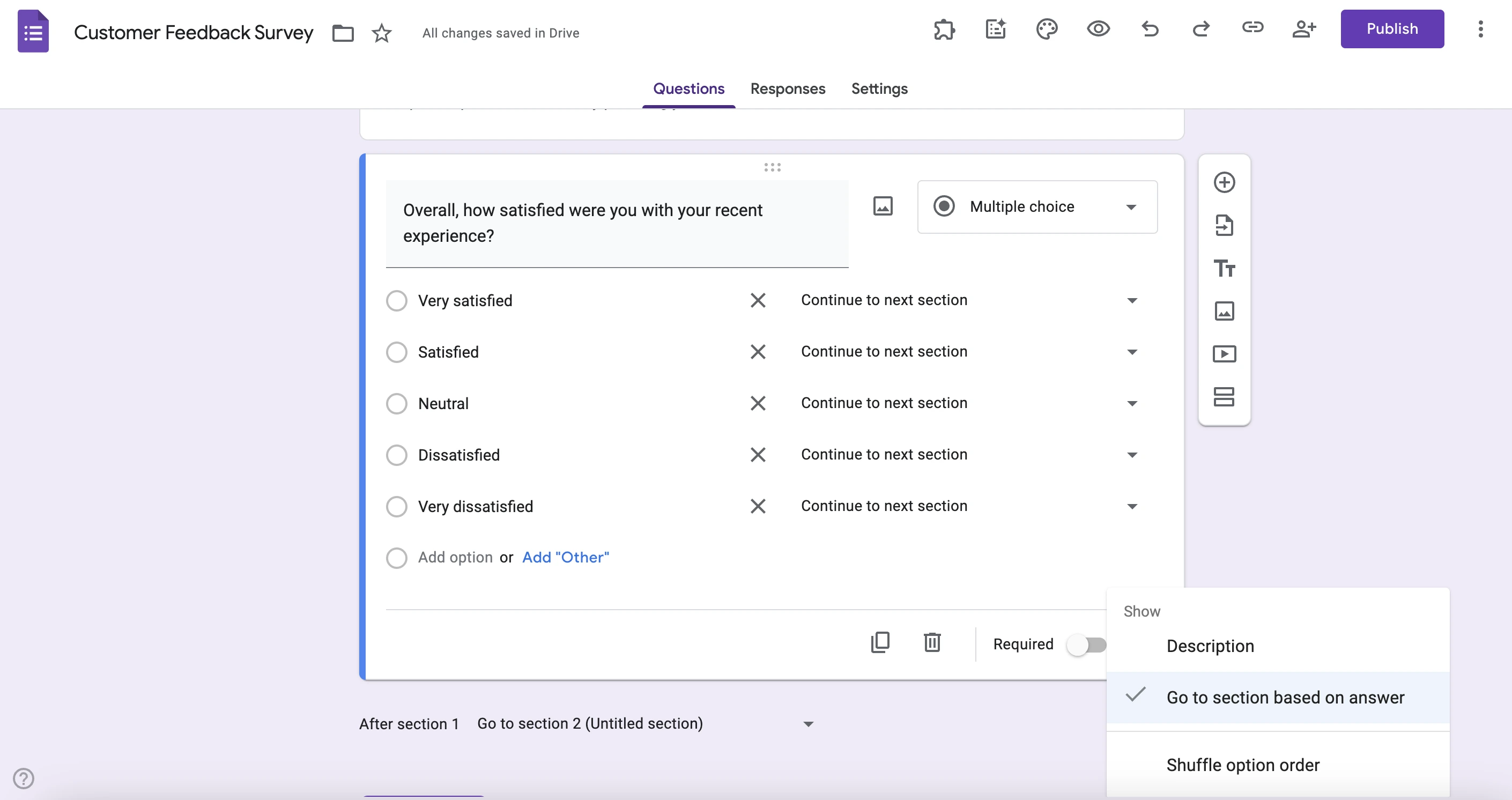
This way, in our customer feedback survey, in order to follow up based on the satisfaction level, we'll have to use a multiple choice question, and not a scale rating. There are also no direct follow-up questions in Google Forms, so what you'll have to do is to enable “Go to section based on answer”.
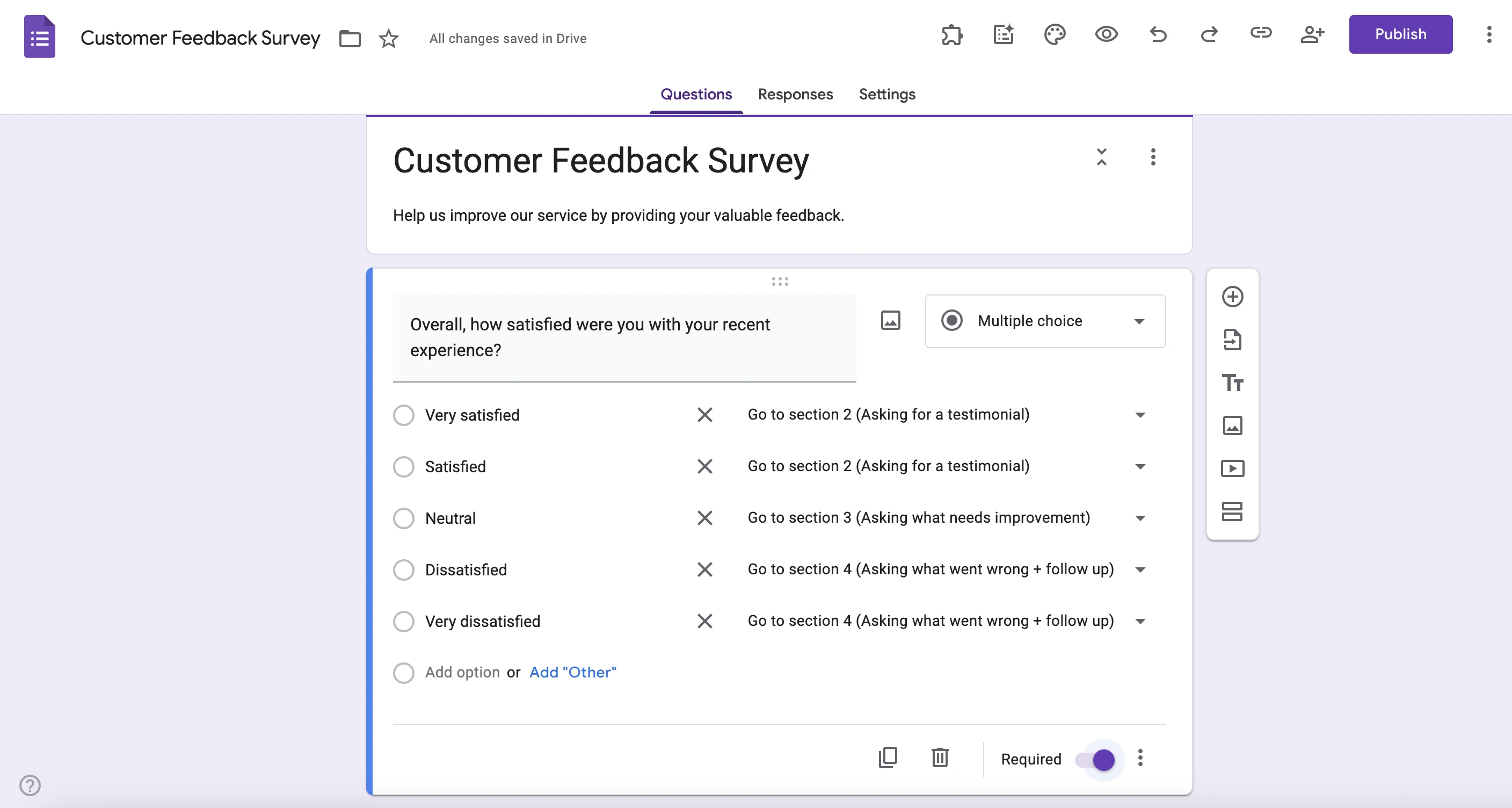
For example, if someone is very satisfied, we might ask for a testimonial, while those who are dissatisfied could be directed to a section asking what went wrong. However, each follow-up needs to be its own section, which quickly adds clutter. What we do here is first create three separate sections and add corresponding follow-up questions. Then it is easy to specify which answer leads to which section, as it is on the screenshot above.
As you can see, this approach is manageable for a few questions, but for longer, more complicated forms and surveys, it can turn into a mess.
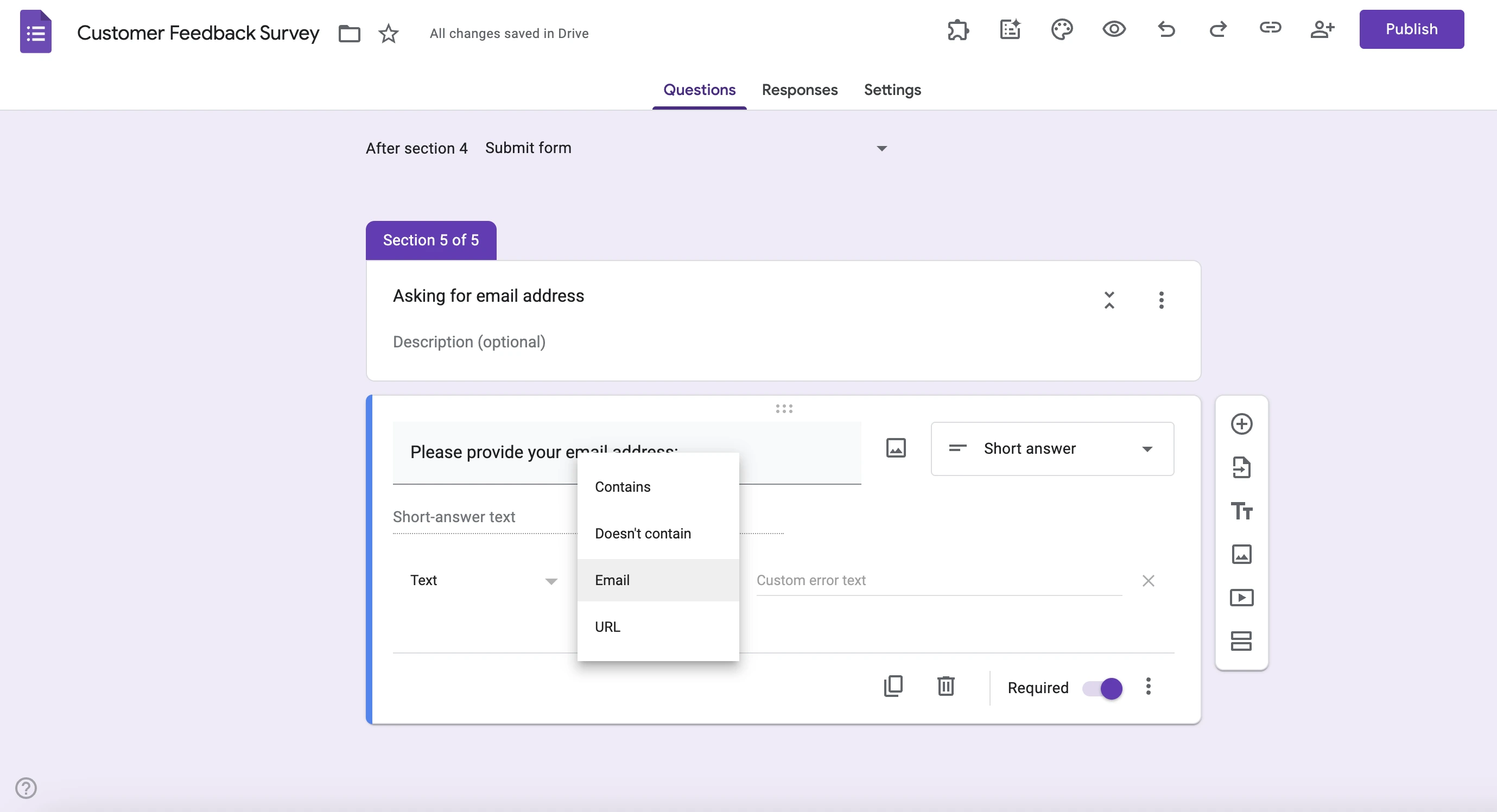
Imagine we also want to ask respondents if they want us to follow up and discuss their issue. It's a simple single-choice question with yes/no answer. If a person responds "yes", we want to ask for their email address. If no, we want them to skip ahead to submit the form. To do this, once again we need to create a new section that will contain one single question - email address field. Google Forms doesn’t have a dedicated email form element, but you can still validate emails with a simple workaround. First, add a short answer form field. Then, click on the three dots at the bottom right and select "response validation". In the second column choose email. Done! Now your respondents will be asked to provide valid email addresses.

Important: When you're using conditional logic in Google Forms with multiple sections branching from the same question, don't forget to set the end of each section to route users correctly. By default, Google Forms sends users to the next section, which can completely break your logic if you’re expecting them to skip or end the form. Always double-check that each section either routes to the submit page or to the next relevant section based on your intended flow.
Adding conditional logic with AI
Now that we’ve walked through how to build conditional logic manually in Google Forms, let's replicate the same logic set-up in an AI-powered form builder. Instead of manually creating sections and routing logic for each response, you simply describe the behavior you want, and Weavely builds the entire logic structure for you. You can review and edit every rule manually if needed, but for most use cases, the AI gets it right on the first try.
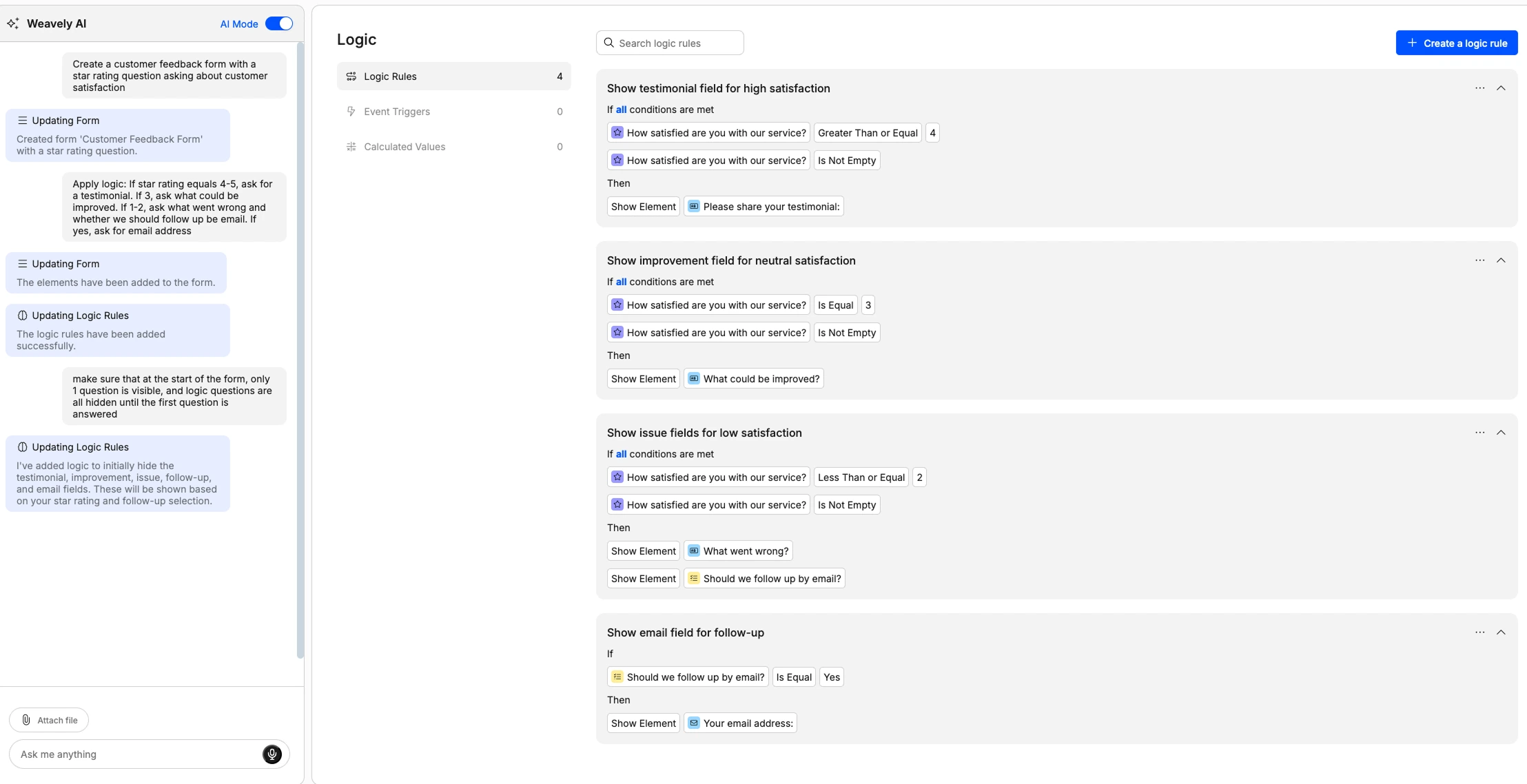
In this example, we asked the AI to:
“Create a customer feedback form with a star rating question about customer satisfaction.
If star rating equals 4–5, ask for a testimonial. If 3, ask what could be improved.
If 1–2, ask what went wrong and whether we should follow up by email.
If yes, ask for email address.”
Weavely instantly built the form, added all relevant fields, and created granular conditional logic to match the flow. The AI also ensured that only the satisfaction question is visible upfront, hiding all logic-triggered questions.
This setup, which takes 10-15 minutes in Google Forms, was built in under 2 minutes and took just one prompt. The entire logic structure is editable via the Logic tab if you want to fine-tune any part of it.

As you can see in the preview above, the added logic works perfectly. Once a user selects 3 stars, the form instantly reveals the relevant follow-up question, based on the logic we defined earlier.
Before sharing your form, we always recommend pressing the preview button to test how the conditional questions behave in real time.
Adding logic manually vs with AI
In Google Forms, adding logic means building extra sections, assigning each answer to a path, and manually routing users. Even a moderately complex form can take 15 to 30 minutes to build and test properly.
In Weavely, you just describe the form and the flow:
“If the answer is this, the next question should be this”
The form is generated instantly, logic included. The whole process takes a couple of minutes.
Yes, you should still preview and tweak if needed, but 90% of the work is done for you. That’s the main difference between AI and manual form building.
Import your Google Form into Weavely
If you’ve already built your form in Google Forms but ran into limitations, don’t worry, your work hasn’t gone to waste. You can import your existing Google Form directly into Weavely. All your questions will be copied over, and from there, you can use Weavely’s AI to apply advanced logic and further customize the form. It’s much faster than having to create forms from scratch.
Frequently asked questions
What fields can be turned into conditional questions in Google Forms?
In Google Forms, only multiple choice and dropdown questions can be used as conditional questions, meaning they will allow you to direct the respondent to certain sections of the form.
Can I show or hide individual questions based on answers?
No, Google Forms does not support field-level logic, which means you can’t show or hide a specific question depending on how someone answered a previous one.
What Google Forms does support is section-based logic. A section is like a separate "page" or block within the form, which can contain one or more questions. You can set up logic to send people to appropriate sections based on their answers, but once they’re in that section, all questions inside it are shown. There’s no way to selectively show or hide individual fields within a section.
Is it possible to set up logic with AI?
Yes, but not with Google Forms. At the moment, Weavely is the only form tool that offers fully AI-assisted logic set-up. It is one of the Weavely's most intelligent features, yet it's available absolutely for free. Instead of manually branching each question or creating extra sections, you simply describe your logic in a short prompt, and the AI builds the entire flow for you.
Can I apply logic to multiple questions at once?
No, Google Forms logic is tied to a single question at a time, and each conditional path must be set up manually. There’s no way to apply the same logic to multiple questions in bulk.
Can I use logic with checkboxes or linear scale (star ratings)?
No, Google Forms does not support conditional logic for checkbox, linear scale, or rating questions.
Can I create multiple layers of logic (nested logic)?
Not really, Google Forms doesn’t support true nested logic. You’d have to create multiple sections and route each manually, which can become complex quickly.

Florian is the co-founder and CEO of Weavely, where he does a bit of everything: from product and fundraising to making YouTube videos and writing for the blog. He holds a PhD in computer science and sits on the board of No Code Belgium, the country's no-code community, after more than seven years as a researcher and business developer at Vrije Universiteit Brussel. He writes the hands-on tutorials here, drawing on both an academic background and the day-to-day reality of building a form tool from the ground up. Based in Brussels.