How to create a membership form with recurring payments for free
Collecting membership fees manually is tedious. Chasing people for bank transfers every month, keeping track of who's paid, sending reminders it adds up fast, especially if you're running a club or association on a volunteer basis.
A membership form with payment integration solves this: members sign up once, enter their payment details, and Stripe handles the rest automatically.
This guide walks you through how to set one a subscription from scratch, what to include, and who this approach works best for.
What is a membership form?
A membership form with recurring payments is a web form that collects member information and sets up an automatic payment on a fixed schedule (monthly, quarterly, annually). The member fills in the form once, checks out via Stripe, and s billed automatically from that point forward.
Instead of collecting a single fee, you're setting up a subscription that continues until the member cancels.
Who can benefit from membership subscription forms?
Membership forms with recurring payments work for any group that charges ongoing fees:
Sports clubs and hobby groups: football clubs, tennis clubs, chess societies, running groups. Collecting annual or monthly dues through a form is simpler than coordinating bank transfers from dozens of members.
Professional associations: industry bodies, alumni networks, trade groups. Members expect a professional sign-up experience and automatic renewal.
Community organizations and NGOs : neighbourhood associations, advocacy groups, volunteer organizations collecting supporter subscriptions.
Gyms and fitness studios: monthly membership fees, class passes, personal training retainers.
Creators and online communities: newsletters, private Discord communities, member-only content. A recurring form lets you collect supporter subscriptions without a full platform like Patreon or Substack.
Co-working spaces and shared facilities: monthly desk fees, shared studio memberships, storage subscriptions.
How to create an online membership form with payment collection
In this section, we'll walk you through the set-up in Weavely - an AI form builder that generates the entire form from a simple description, with Stripe payment built in. What's particularly good is that Weavely doesn't charge any additional fees for payment collection. The tool is absolutely free to use and takes a couple of minutes to create online forms, as most of the work is done by AI.
Step 1: Generate your form with AI

In a membership form generator describe what you need in the prompt box. Something like: "Membership sign-up form for a tennis club with monthly recurring payment." Weavely will generate the relevant fields and automatically set the form to Payment Form mode.
Step 2: Connect your Stripe account
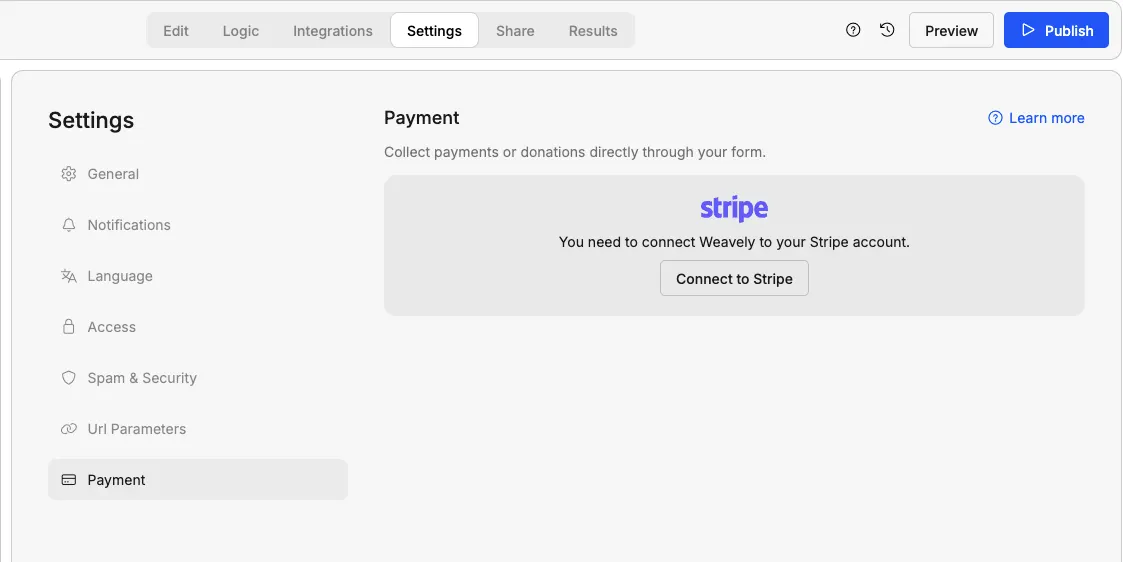
Go to Settings → Payment and click Connect to link your Stripe account. You'll be asked to grant the necessary permissions. If you don't have a Stripe account yet, you can create one at stripe.com. It's free to set up and you only pay per transaction.
Step 3: Select Subscription as the payment type

After connecting Stripe, choose Subscription as your payment type. Then:
- Give the payment a name (e.g. "Monthly Club Membership")
- Choose your currency
- Set the amount: either a fixed fee every member pays, or a variable amount pulled from a numerical field in your form
- Set the billing interval: weekly, monthly, quarterly, or annual
Stripe handles the memberships renewals automatically from the moment a member completes checkout.
A note on membership tiers: In Weavely, each form supports one price and one billing cycle. If for example you offer multiple tiers, (a standard tier at €10/month and a supporting membership at €25/mont), you'll need a separate form for each. You can link to both from a single page on your website and let members choose before clicking through.
Step 4: Customize the design
Match the form to your organization's branding. Add a short intro at the top explaining what the membership includes and what members are signing up for. Be clear about the billing frequency and amount before they hit submit.
You can ask AI to make all the necessary changes. For design customization, just upload your logo or paste a link of your website - Weavely will fetch all the necessary brand elements and update the design of the form.
Step 5: Publish and share the form

Here is how a membership form generated in Weavely looks like. All you have to do is to click Publish, then go to the Share menu. You can:
- Embed it on your website - ideal for a dedicated "Join" or "Membership" page
- Share a direct link - useful for sending via email or social media
Managing your members
Once payments are live, you have two places to track them:
In Weavely : the Results tab shows all form submissions, including payment status (succeeded or failed) and the amount charged.
In Stripe: your Stripe dashboard gives you full visibility over subscriptions, upcoming renewals, failed payments, and payouts. This is also where you manage cancellations and refunds.
For a live record of all members, connect Weavely to Google Sheets via the Integrations tab. Every new sign-up gets added to your spreadsheet automatically, which is very useful for keeping a member register without manual data entry. Weavely also has many more native integrations, so you can send your membership registration data to HubSpot, Notion, Salesforce, and more.
Cancellation policy
It can happen that a member wants to cancel their subscription. Weavely doesn't handle cancelations, members can't cancel their own subscription from a link or dashboard. When someone wants to cancel subscription for your service, they'll have to contact you directly. You would then need to manually cancel the subscription in Stripe.
Log in to your Stripe dashboard, find the member's subscription, and cancel it from there. Stripe gives you two options: cancel immediately, or cancel at the end of the current billing period. The latter is usually the friendlier option. This way, the member keeps access until the period they've already paid for runs out.
A few things worth setting up before you go live:
- A dedicated cancellation email address or contact point, so members know where to send cancellation requests and don't end up disputing charges with their bank instead
- A clear cancellation policy in your membership terms: how much notice is required, whether refunds are issued for partial periods
- A simple internal process: whoever manages Stripe should know how to cancel a subscription promptly. A delayed cancellation that results in an extra charge is the fastest way to upset a member
One line worth adding to your confirmation email: "To cancel your membership, contact us at [email] and we'll process it within [X] days." It sets expectations upfront and reduces friction later.
What to include in your membership form
Weavely takes care of the form content. But should you want to create a form from scratch or manually add the necessary form fields, here are some tips.
Essential fields:
- Full name
- Email address
- Payment details (handled by Stripe checkout, not the form itself)
Depending on your use case:
- Consent checkbox: "I agree to the [Membership Terms]" linking to a separate page. Avoid a wall of text in the form itself
- Phone number (if you need to contact members directly)
- Date of birth (if membership rules vary by age, e.g. junior vs senior)
- Address (if you're mailing physical membership cards or benefits)
- Consent checkbox for member communications
- Referral source: How did you hear about us?
Tips for getting more sign-ups
Be transparent about what membership includes
List the benefits clearly on the page above the form. People won't sign up for a recurring payment without knowing what they're getting.
Mention that cancellation is easy
"Cancel at any time" is one of the most effective lines you can add near a subscription sign-up. It removes the biggest hesitation.
Send a proper welcome email
Connect your form to an email marketing tool (e.g. Mailchimp or Brevo), and send out a welcome message when someone signs up.Address them by name, confirm the membership details, and tell them what to expect next.
Show the annual savings
If you offer both monthly and annual billing, always show the annual price as a saving rather than a total. "€120/year" lands worse than "€10/month, or €100/year - save €20." People respond to loss aversion, the perceived loss of a discount they could claim is more motivating than the gain of a lower price.
Ready to set up your membership form?
You can create a free membership form with flexible payment options in Weavely in a few minutes. Connect Stripe, set your billing cycle, publish, and share. This way, members sign up once and you collect dues automatically from that point on.
Generate your free membership form →

Florian is the co-founder and CEO of Weavely, where he does a bit of everything: from product and fundraising to making YouTube videos and writing for the blog. He holds a PhD in computer science and sits on the board of No Code Belgium, the country's no-code community, after more than seven years as a researcher and business developer at Vrije Universiteit Brussel. He writes the hands-on tutorials here, drawing on both an academic background and the day-to-day reality of building a form tool from the ground up. Based in Brussels.