How to connect Google Forms to HubSpot, Airtable, or Notion (with or without Zapier)
Google Forms is the go-to tool for building forms and surveys. It’s free, simple, and familiar. Many people use it for quick feedback forms, event registrations, or internal surveys.
At the same time, more and more teams are using Google Forms for serious business workflows like lead generation, project management, and event coordination. If you're working on these kind of projects, you probably need your form data inside tools like Notion, Airtable, HubSpot, Salesforce, and more.
However, Google Forms doesn’t offer native integrations with any of these tools. Google Forms submissions automatically go to Google Sheets only. So if you're looking for a way to integrate your data with a CRM or a project management platform, we found 2 solutions that we will present in the following sections.
Why integrate Google Forms with Airtable, Notion, or HubSpot?
Integrating Google Forms with tools like Airtable, Notion, or HubSpot allows form submissions to go directly into the systems where your work actually happens instead of sitting in Google Sheets.
For example, when a potential client fills out a lead form, a new contact and deal can be created in HubSpot instead of someone copying the data manually. If a company uses a project intake form, each submission can create a new project entry in Notion with assigned tasks and deadlines. For event coordination, registration responses can automatically populate an Airtable base that tracks attendees, payment status, seating, or vendor assignments. Instead of Google Forms responses sitting in a spreadsheet, the data immediately becomes structured, actionable, and part of your existing workflow.
Option 1: Use Zapier (the workaround)
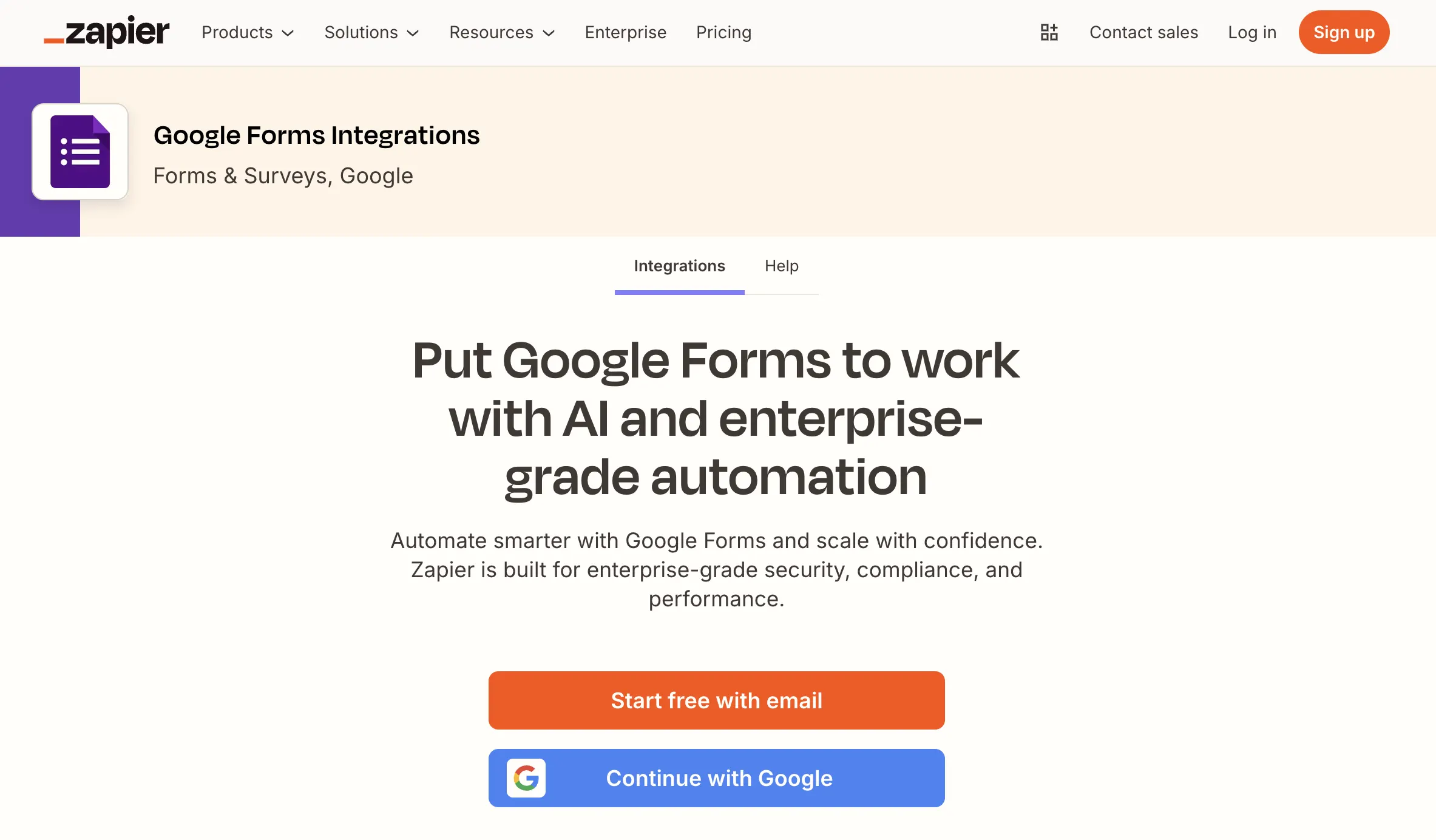
Zapier offers an integration with Google Forms.
Once you connect Google Forms to Zapier, you can create automations that send responses to Notion, HubSpot, Airtable, Salesforce, and many other tools.
It is a working approach, but it does add another layer of set-up and maintenance, and can become expensive, depending on your response volume and automation complexity.
How to use Zapier with Google Forms?
For example, if you want to register leads from a Google Form in HubSpot, your workflow would look like this: form submission → Zapier detects it → Zapier sends data to HubSpot → HubSpot creates or updates records.
On the free plan of Zapier you can perform up to 100 tasks per month before you hit the limit. A task in Zapier is counted every time one of your Zaps performs an action successfully (for example, creating a new record in a CRM or sending data to another app). Once you’ve used up those 100 tasks, your Zaps won’t run again until the next monthly cycle unless you upgrade to a paid plan or enable pay-per-task billing on a paid plan.
This means that if you collect more than 100 responses, you'll have to upgrade to a paid plan in Zapier which is $30/month.
Option 2: Import your Google Form into Weavely
You’ve already invested time structuring sections, refining questions, and setting up answer options. Maybe it’s a five-page intake form for event coordination. Maybe it’s a detailed lead qualification survey. Either way, you were almost done setting up your form. But then you realize you need the collected data in a third party tool, but Google Forms Notion integration or HubSpot integration do not exist.
In this case, why not import your Google Form into a professional form builder that offers all these integrations natively and for fee? Instead of forcing Google Forms to do something it wasn’t designed for, you move the form into a system built for more complex use cases.
And importantly, you don’t lose the work you’ve already done.
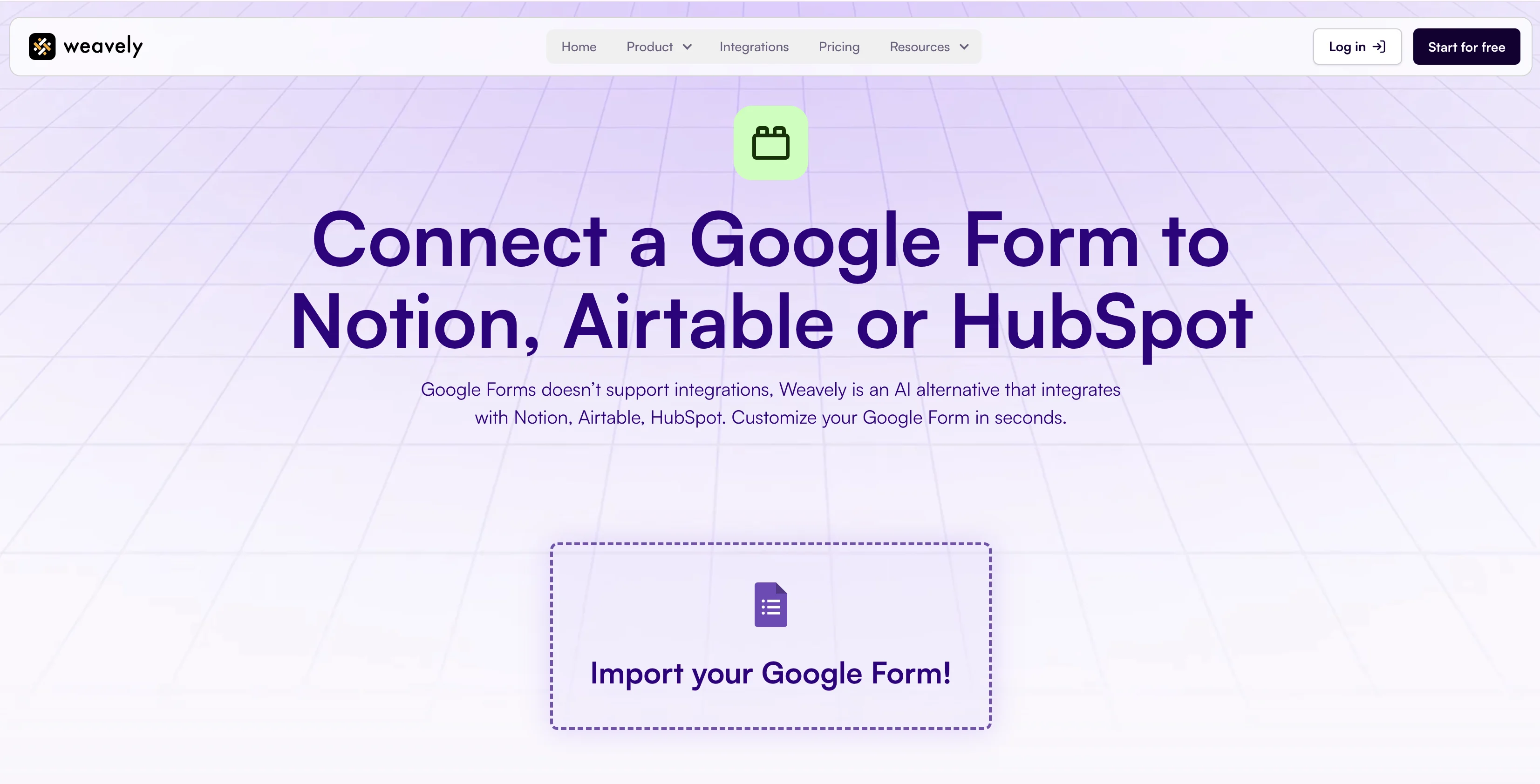
Weavely allows you to import your existing Google Form and take it over completely.
When you import your Google Form into Weavely, the form is recreated the way it was, so your questions, sections, and answer options stay the same. You don’t have to rebuild anything. The main difference is that instead of being limited to Google Sheets, you can connect the form directly to third-party tools like Notion, HubSpot, Zoho, Airtable, and more through native integrations.
You can also adjust the design to make the form look more aligned with your brand and add more advanced conditional logic or other features if your use case requires it, for example for lead generation or project management. So essentially, you keep the structure you already built, but you get more flexibility in how the form looks and where the data goes.
Weavely offers integrations for free, and allows you to collect unlimited responses. This way, you can customize and upgrade your Google Form absolutely free of charge.
Frequently asked questions
Can Google Forms integrate directly with Airtable, Notion, or HubSpot?
Google Forms does not offer native integrations with Airtable, Notion, or HubSpot. By default, responses are sent to Google Sheets. To connect with other tools, you typically need an automation platform (Zapier or Make) or a form builder (Weavely) that supports native integrations.
Is Google Forms suitable for lead generation?
Google Forms can be used for lead generation, especially for simple campaigns. However, if you need automatic lead assignment, deal creation, scoring, or follow-up sequences inside a CRM like HubSpot, you’ll need integrations or additional automation.
Is Zapier the only way to connect Google Forms to other tools?
No, but Zapier is one of the most common automation platforms used to connect Google Forms with third-party tools. Other automation tools exist, for example Make, but they work similarly. They act as a middle layer between your form and your destination platform.
Does Weavely integrate with other tools like HubSpot, Notion, or Salesforce for free?
Yes, Weavely lets you send form submissions to various third-party tools absolutely for free.

Florian is the co-founder and CEO of Weavely, where he does a bit of everything: from product and fundraising to making YouTube videos and writing for the blog. He holds a PhD in computer science and sits on the board of No Code Belgium, the country's no-code community, after more than seven years as a researcher and business developer at Vrije Universiteit Brussel. He writes the hands-on tutorials here, drawing on both an academic background and the day-to-day reality of building a form tool from the ground up. Based in Brussels.