Claude Connectors for Forms and Surveys: The Complete Guide
Key Takeaways
- Claude connectors let you build and publish a form or survey through tools like Weavely without leaving the chat.
- Connectors are powered by the Model Context Protocol, or MCP, which lets Claude connect to external apps, data sources, and other tools such as a form builder or Google Drive.
- Basic connectors for Claude are available on all plans, including the free tier, but paid accounts usually get the easier Customize → Connectors flow.
- The simple outcome is this: describe your form in plain English, ask Claude to create it via a connector, and get back a live link you can share.
Until recently, building a survey meant leaving Claude, opening a separate form builder, dragging fields around, and copying a link back. Claude connectors move much of that workflow into chat itself.
What are Claude Connectors?
Claude connectors are integrations that let Claude use external tools directly from a conversation. Without connectors, Claude is limited to interacting only with text, documents, files, and data that you upload yourself. With connectors, Claude can search, read, edit, create, manage, and respond through approved services.
Connectors are built on Anthropic’s Model Context Protocol, an open standard that enables developers to build secure, two-way connections between their data sources and AI-powered tools. MCP is the technical name. “Connectors” is the term you’ll see in Claude’s UI, including the sidebar and directory, and people often use both words interchangeably.
MCP allows developers to either expose their data through MCP servers or build AI applications, called MCP clients, that connect to these servers. The architecture of MCP is designed to simplify the development process by allowing developers to build against a standard protocol instead of maintaining separate connectors for each data source. MCP aims to replace fragmented integrations with a more sustainable architecture, allowing AI systems to maintain context as they move between different tools and datasets. MCP is an open protocol supported across a wide range of clients and servers, making it easy to build once and integrate everywhere.
In practice, that means Claude connectors can create a new form, generate form copy, edit questions, summarize answers, export results, or make an API call through a connected API. Project management connectors allow Claude to summarize updates and generate tasks based on conversations with platforms like Asana, Linear, or Jira. Enterprise collaboration connectors permit Claude to retrieve documents and summarize discussions using tools such as Slack and Google Workspace. Interactive connectors allow Claude to render design components or presentation cards inside the chat window using Figma and Canva. Connectors can appear as embedded inline cards for quick actions or in full-screen views for complex data visualizations.
Why connectors matter for forms and surveys
The old workflow was manual. Open a builder, add fields, customize labels, preview, publish, then paste the link into another app. With Claude connectors, you stay in chat, write a text prompt, and let Claude send instructions to the connected form builder.
That creates zero context-switching, reducing the need to toggle between different software platforms. Claude connectors enable users to streamline workflows by integrating with various applications, allowing for enhanced productivity across different tools. The integration of Claude connectors allows for functionalities such as searching emails, managing tasks, and analyzing documents, which can significantly reduce time spent on manual tasks. Claude connectors can facilitate cross-referencing and synthesizing information from multiple sources, making it easier for teams to access and utilize their data effectively.
How to add a Claude Connector
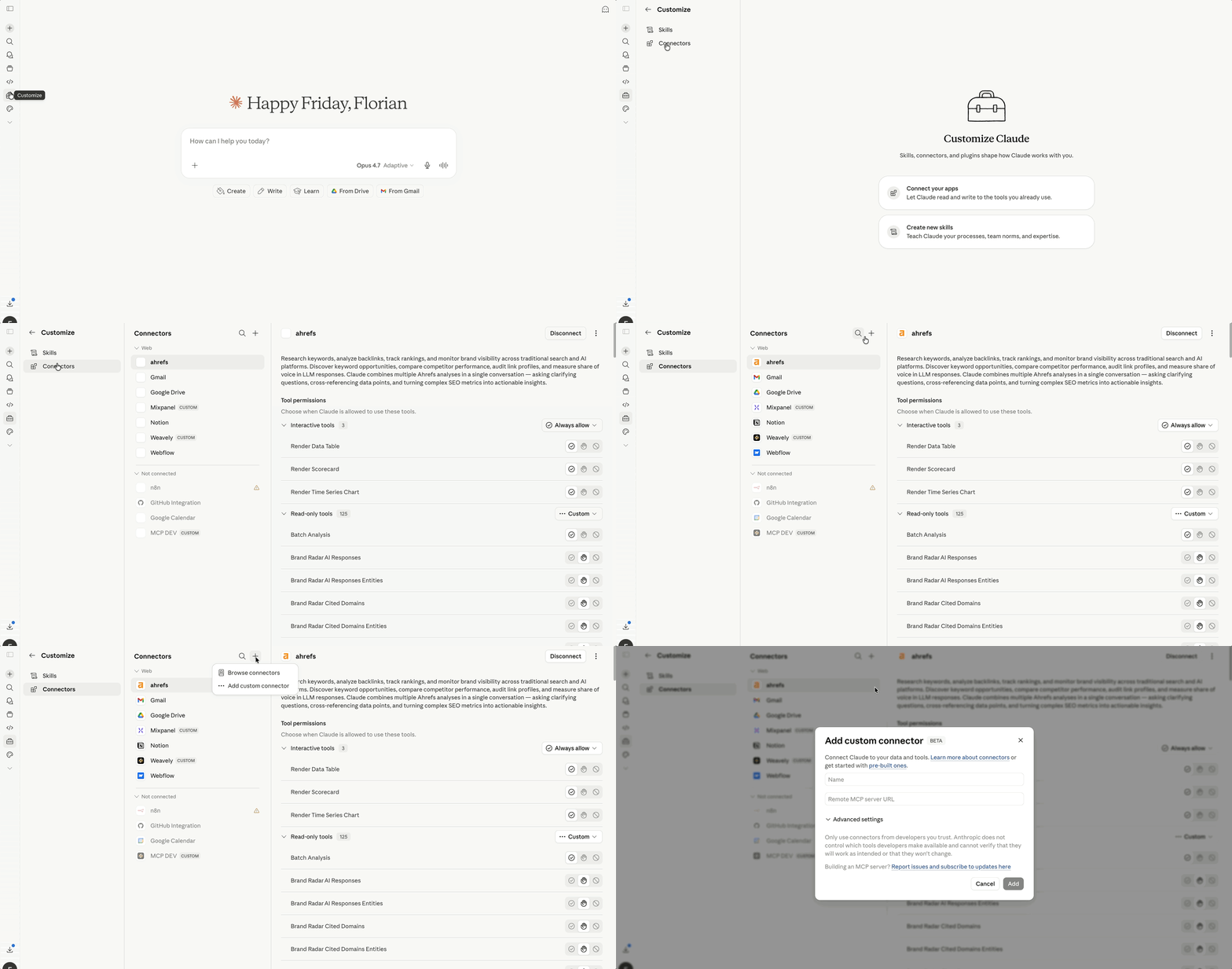
Adding a connector is usually a one-time setup. Setup for most connectors typically takes a few seconds, as they use OAuth to authorize access to the app’s login page. After that, Claude can access the connector when you ask.
If you’re on Claude Pro or Claude Max, go to Customize → Connectors in the Claude desktop app and click “+”. Enter the name for the connector and supply the connector's URL.
Claude free users can still connect to mcp servers by editing claude_desktop_config.json. On macOS, this file usually lives under your user Library folder (~/Library/Application Support/Claude/claude_desktop_config.json). On Windows, it usually lives in your AppData folder (%APPDATA%\Claude\claude_desktop_config.json). Make a backup before you edit. Here's an example, using the Weavely connector definition:
{
     "mcpServers": {
       "weavely": {
         "command": "npx",
         "args": ["mcp-remote", "https://mcp.weavely.ai/mcp"]
       }
     }
 }
Restart Claude Desktop after saving. If editing configuration files feels risky, ask a teammate, developers, or an IT admin to help.
Building a form or survey through Claude (customer feedback example)
Imagine you want feedback on your onboarding flow. You write:
“Use my Weavely connector to create a customer feedback survey for our onboarding flow. Ask for a 1–10 satisfaction rating, a short comment, and whether they’d recommend us to a friend.”
Claude interprets the prompt, calls the connector, and asks a form builder like Weavely to create the draft. Claude may then return a summary of the questions, field types, and a preview URL you can open on the web. You can also try prompts like:
- “Create a customer feedback form for my SaaS onboarding flow, with a 1–10 rating and an open comments box.”
- “Generate a 5-question employee engagement survey for a 20-person remote team.”
- “Draft an event registration form for a 50-person workshop in July 2026, including dietary restrictions.”
If you want to further tweak your forms and surveys you can then ask for conditional logic, multi-step pages, thank-you content, notifications, and data collection rules in plain English. From there, you continue with small edits:
- “Add a star rating question from 1 to 5 about the onboarding emails.”
- “Only show the open comment box if the overall rating is 4 or lower.”
- “Split the survey into two pages, with ratings on page 1 and comments on page 2.”
Claude sends these updates through the connector, so the saved form stays in sync. You can also ask for copy changes, such as “Rewrite the thank-you message so it sounds friendly but professional.” Then publish and ask for a public URL or embed block. If your form builder supports it, Claude may help with simple workflows, such as an email notification, spreadsheet export, or email continue setting. Always review before sending it to users, especially if revenue, money, or personal data is involved.
What you can build with Claude Connectors and a form builder
- Customer feedback surveys: “Create a post-purchase feedback survey with NPS, delivery satisfaction, and comments.”
- Lead generation forms: “Build a lead capture form with name, work email, company size, budget range, and consent.”
- Event registration and RSVP: “Draft a webinar RSVP form with time-slot preferences and attendance type.”
- Contact forms: “Create a contact form that routes sales, support, and billing requests.”
- Internal team check-ins: “Generate a weekly team check-in for blockers, priorities, and workload.”
- Intake forms: “Build an IT request form with urgency logic for critical issues.”
- Education and training quizzes: “Create quizzes with multiple-choice answers and one reflection question.”
Comparing Form Builder MCP Servers
Several form builders now offer a Claude connector. Here's what each one does, and the one reason you'd pick it or skip it.
Tally builds and edits forms, and can pull your responses into Claude to analyze them (summaries, NPS, recurring themes). Pick it if you want response analysis in chat, for free. Skip it if you'd rather not drop into a drag-and-drop editor every time you work outside Claude.
Jotform also builds, edits, and analyzes submissions in Claude, on top of a mature form platform. Pick it if you already pay for Jotform or need its more advanced features. Skip it if you're on the free plan, which caps you at a handful of forms and around a hundred responses a month.
Typeform handles basic form actions in Claude. Pick it if Typeform is already your tool. Skip it if you want something polished, since the connector is still in beta and setup is fiddlier than the rest.
SurveyMonkey builds, sends, and analyzes surveys in Claude. Pick it if your team already runs on SurveyMonkey for HR, CX, or research. Skip it if you're not on a paid plan, or if you need to edit surveys that have already collected responses.
Weavely builds, styles, and publishes forms and surveys in Claude. Pick it if you want the whole thing to stay in chat, since it's AI-native rather than a drag-and-drop tool with a connector bolted on. Skip it if your priority is analyzing existing response data inside Claude, which Tally and Jotform do today and Weavely doesn't.
Tips for getting better results with Claude Connectors
- Be specific. Include audience, goal, length, and tone in your prompts.
- Iterate in small steps. Change one or two things, then preview.
- Use the current thread. Claude can use context from earlier chat messages.
- Describe outcomes, not widgets. Say “only ask this if they choose B2B.”
- Preview before publishing. Check required fields, page breaks, and thank-you pages.
- Review sensitive fields. Know where data is stored, who has access, and whether organizations need consent language.
- Combine connectors carefully. Advanced users can connect forms with databases, Google Drive, Slack, and AI agents, but keep control of permissions, logs, and resources.
FAQ
Do I need a paid Claude plan to use connectors with a form builder?
No. All Claude plans, including free, can use basic connectors. Paid plans usually make custom connector setup more visible through Customize → Connectors.
Can I edit a form after Claude builds it?
Yes. You can keep working in the same chat, ask Claude to add questions, revise wording, or change logic. You can also open the form in Weavely or another builder for visual edits.
Where does my form data go?
Responses are stored in the connected form builder or survey tool, not inside Claude itself. Review storage, retention, encryption, and access settings for your chosen tool.
Is this the same as MCP?
Not exactly. MCP is the open standard and wiring. A connector is the specific app Claude talks to through that standard.
Does this work in Claude Code or only claude.ai?
MCP connectors are supported where Claude respects the same configuration, including some Claude Code workflows. Exact support across apps, platforms, and clients changes, so check Anthropic’s latest notes.
Conclusion
Claude connectors moved forms and surveys from a separate tab into the chat itself. Start with a small, low-risk form, then expand into more complex surveys as you get comfortable. If you want to try this workflow with Weavely, you can add our Claude connector at https://mcp.weavely.ai/mcp and start building your next form by talking to Claude.

Tatiana is the Growth Marketing Manager at Weavely, where she's spent nearly four years running marketing end to end. From campaign strategy to the SEO content that brings new readers to the platform. Working day to day on a form builder gives her a front-row seat to what actually makes forms, surveys, and landing pages convert, and that's what she writes about here: practical, tested advice on lead generation and form design. Before Weavely, she led brand and SEO work at Digital Leap and cut her teeth on B2B and B2C content at Ruddy. She's based in Brussels.