7 Lottie Animations & Survey GIF Ideas to Make Your Forms Feel Alive (Free Downloads)
Key Takeaways
- A survey gif or Lottie animation makes forms feel more polished and memorable, but don’t expect it to magically boost completion rates.
- Lottie animations offer fluid motion, smaller file sizes, and sharper scaling than traditional GIFs, making them ideal for professional forms.
- Weavely is an AI form builder that supports embedded Lottie JSON files and GIFs, with conditional logic to show different animations based on user answers.
- The 7 animation types covered: welcome screens, decorative question accents, section dividers, conditional rating reactions, conditional choice reveals, branded mascots, and confirmation celebrations.
- Each idea includes placement guidance, practical use cases, and free downloadable animation sources from LottieFiles and IconScout.
What Is a “Survey GIF” and Why Use Animation in Forms?

A survey gif is an animated image file used within online questionnaires to make them more engaging and visually appealing. Most people picture something like Mailchimp’s famous high-five loop, but modern forms increasingly use Lottie animations for sharper, more polished motion.
Integrating GIFs can transform a standard survey into an interactive experience. Animation enhances user engagement by making interactions more intuitive and emotionally engaging, which can directly influence product metrics such as conversion, retention, and time on page. You get clearer visual feedback, a more professional look, and a form that feels less like a chore.
This article is a hands-on list of animation ideas you can add in minutes using tools like Weavely, no design degree required.
GIF vs Lottie: Which Animation Format Should You Use in Surveys?
Both formats work inside survey tools, but they solve different problems.
GIFs are raster images which are easy to upload anywhere, including workarounds for adding a Google Form gif. They’re perfect for memes, screen recordings, and quick reaction loops. GIFs use looping motion to convey complex emotions or demonstrate processes in ways text cannot. The tradeoff: GIFs should load fast, ideally under 1MB, particularly for mobile devices. A complex 5-second GIF can balloon to 2-4MB, slowing your form.
Lottie is a vector-based JSON format that renders smooth, fluid motion at any size. Files typically land between 28-100KB, which is dramatically smaller than equivalent GIFs. The result feels more app-like and premium.
Libraries like LottieFiles and IconScout offer thousands of free Lottie animation examples for ui elements, icons, and survey states. This guide focuses on Lottie for beautiful form design, but every idea also works as a regular form gif.
Overview: 7 Animation Ideas to Make Survey Forms More Engaging
Here’s what we’ll cover:
- Welcome screen animation: Sets tone on the intro page
- Decorative question animation: Placed above or below specific questions
- Animated section dividers: Between question groups in long forms
- Conditional rating reactions: Different animations triggered by score
- Conditional choice reveals: Animations based on dropdown/checkbox selections
- Branded mascot: Recurring character throughout the survey
- Confirmation celebration: Memorable end on the thank-you screen
Well-designed animations in web interfaces can improve perceived performance and help maintain user attention, making the structure of a site easier to understand. Each section below includes a free Lottie source and quick implementation notes for Weavely users.
1. Welcome Screen Animation for a Friendlier First Impression
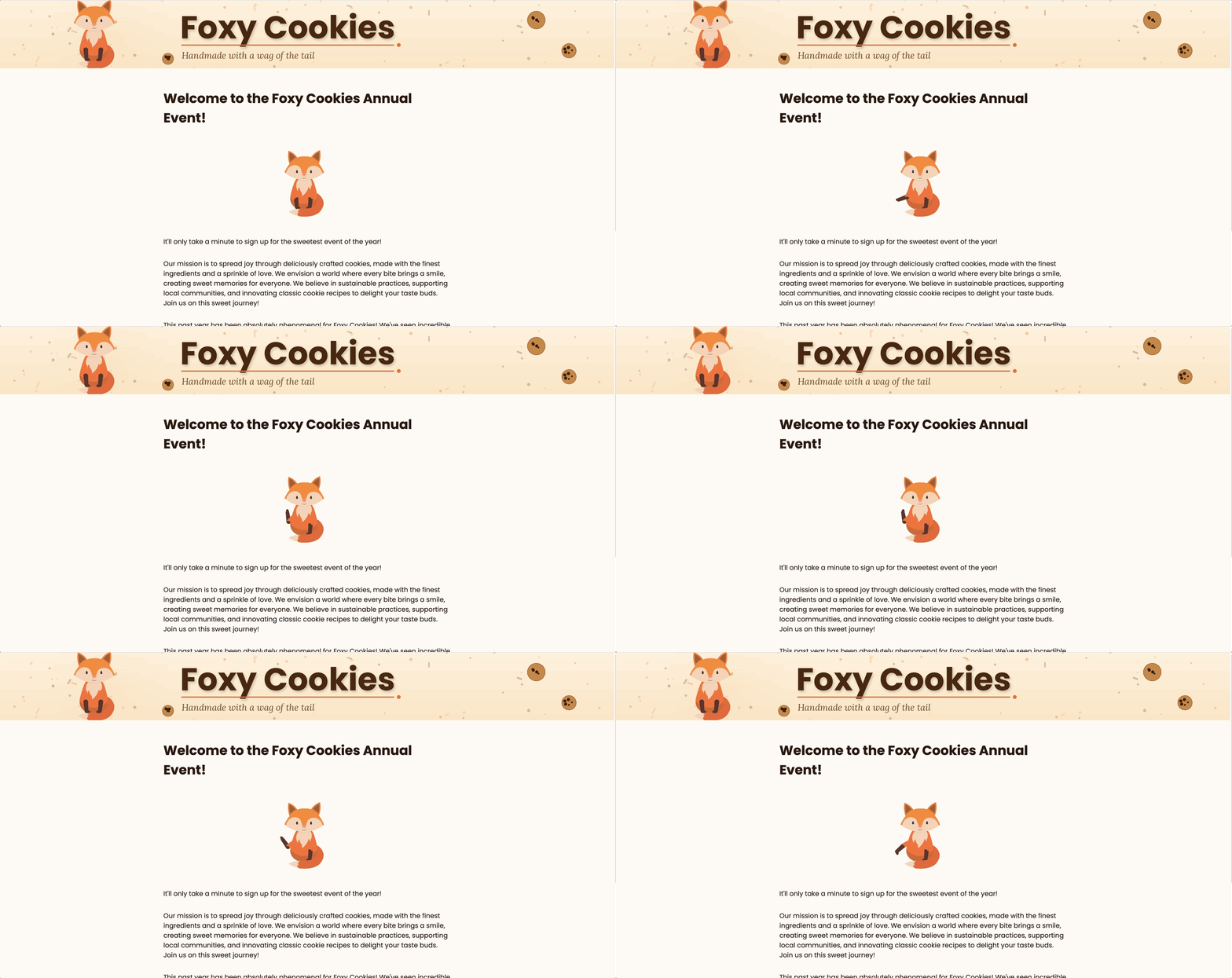
A welcoming survey gif or Lottie loop on the intro screen reduces the cold feeling of a blank form. It signals that someone put thought into this experience.
What works here:
- Animated wave or friendly character
- Calendar flipping for date-based surveys
- Clipboard animation for feedback forms
- Simple logo reveal with subtle motion
Keep it calm! Short loops, limited colors, nothing that delays loading or competes with the “Start” button. This supports brand perception by creating an emotional connection before questions even begin.
Free source: Search “wave hello” or “welcome” on LottieFiles (files often under 30KB). You can download the animation we used in the example above here.
In Weavely: Upload your Lottie JSON to the first screen, then position it above your welcome text in the single-column layout.
2. Decorative Animations Above or Below Individual Questions
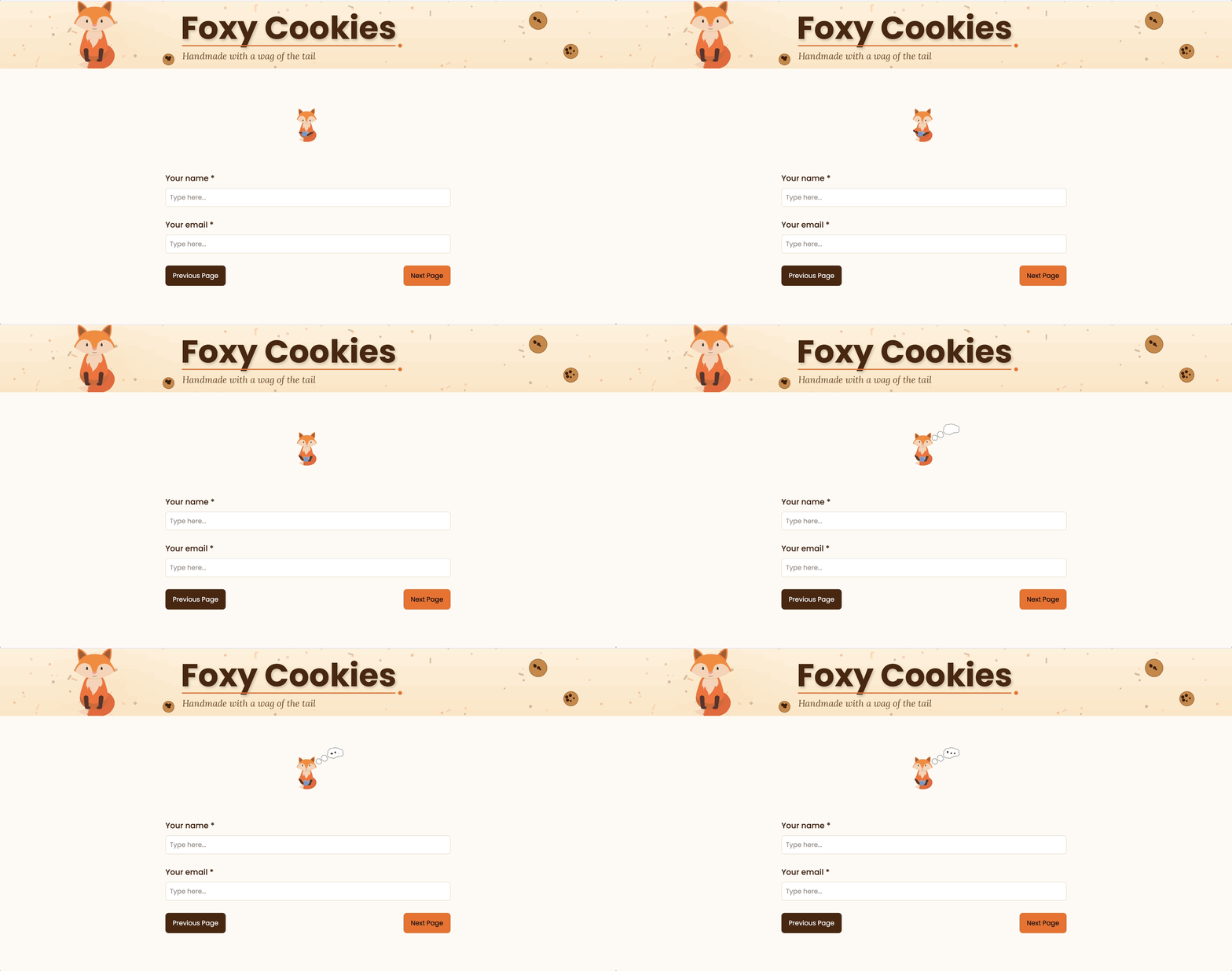
Small animations placed directly above or below specific questions break up text-heavy pages and guide users through the content.
Concrete examples:
- Steaming coffee cup above “What’s your morning routine?”
- Shopping bag above “Describe your shopping habits”
- Book flip above “Rate this course”
- A 5-second animation can explain a complex product feature instead of a long paragraph in B2B surveys
The goal is supporting comprehension, not random decoration. Each animation should relate to the question topic. Keep them short, looping icons or micro-illustrations that don’t push questions below the fold.
Free source: Search “coffee,” “shopping,” or “education” on IconScout’s free Lottie section. Look for animation packs with 3-5 themed loops. You can download the animation we've used for our example above here.
In Weavely: Insert animations as content blocks above questions. Keep sizing consistent across the form for visual rhythm.
3. Animated Section Dividers for Long Multi-Page Forms
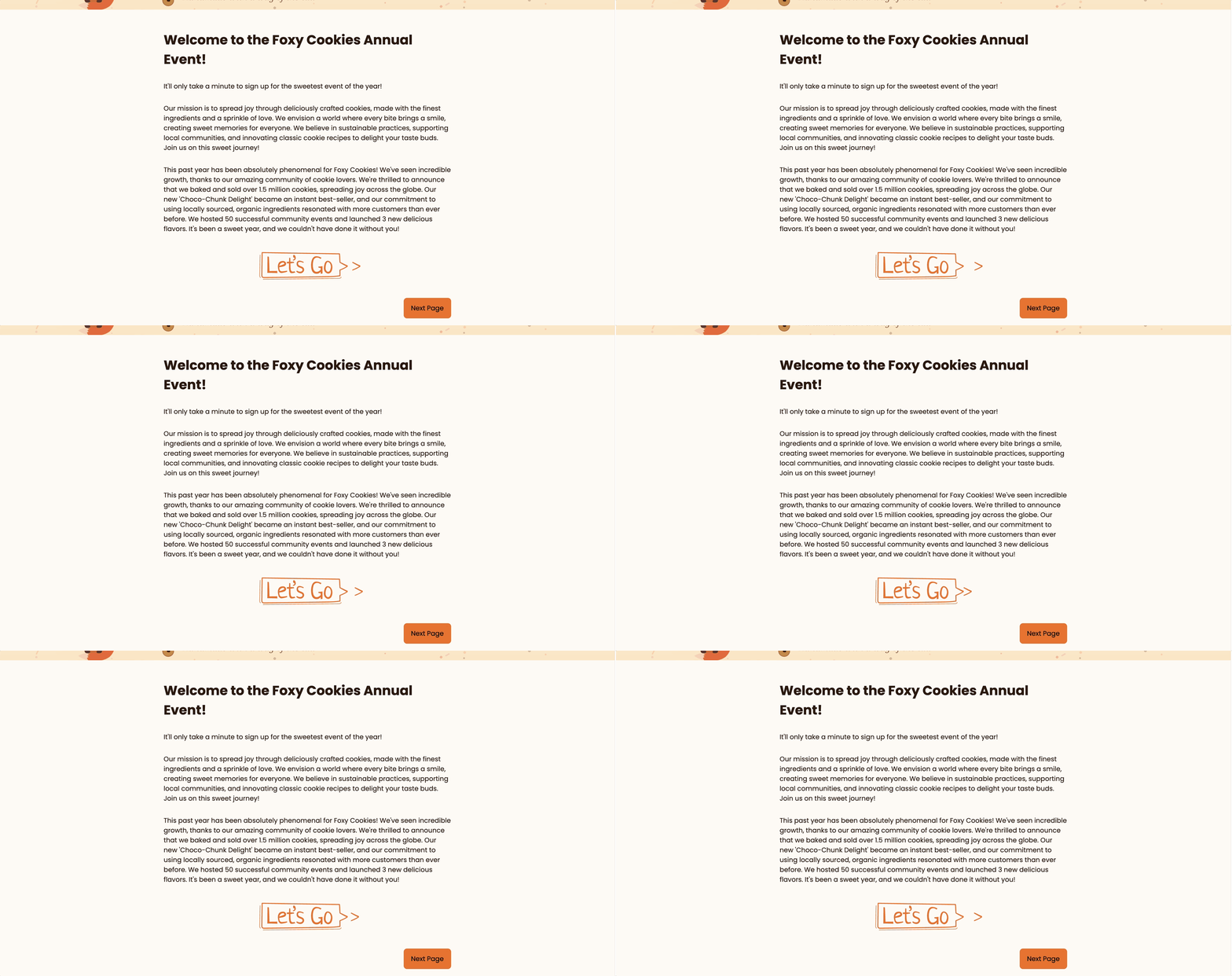
Long surveys benefit from clear sections. Animated dividers signal topic changes and maintain momentum when respondents might otherwise drop off.
Divider styles that work:
- Subtle progress bar animation
- Moving dashed line transitions
- Icons that change (house → cart → receipt for customer journeys)
- Using a short loading-style GIF as a progress bar can make waiting less tedious and encourage completion
Motion here should be gentle and horizontal, reinforcing progress without pulling focus from section titles. This matters most in research and feedback forms where topics shift between pages.
Free source: Search “progress” or “divider” on LottieFiles. Many can be recolored to match brand palettes. You can download the example used above here.
In Weavely: Place animations on their own content blocks between question groups to help respondents scan the structure.
4. Conditional Rating Reactions (Different Animations per Score)

Rating questions become more responsive when different survey gifs or Lottie reactions appear based on the score. Micro-animations provide clear visual feedback for user actions, reducing tension and building trust, which helps guide users toward the next step in their interaction.
Example setup:
- 4-5 stars: Cheerful confetti burst
- 3 stars: Neutral thumbs-up loop
- 1-2 stars: Empathetic “we’re listening” animation
GIF-Based Rating Scales can replace traditional Likert scales with a series of emotional GIFs, creating a sense of being acknowledged in real time. This improves emotional bond without altering collected data.
Implementation: Use conditional logic. For example, show Animation A if rating ≥ 4, Animation B if rating = 3, Animation C if rating ≤ 2.
Free source: Search “rating reactions” or “emoji expressions” on LottieFiles for bundled sets. You can download the examples used above here.
In Weavely: Apply built-in conditional show/hide rules (Greater Than, Less Than, Is Equal) to animation blocks positioned after the rating field.
5. Conditional Choice Reveal Animations (Based on Answers)

Playing different animations depending on which option someone picks makes forms feel responsive and alive.
Practical scenarios:
- Show a cake animation when “birthday party” is selected
- Microphone animation for “webinar”
- Briefcase animation for “corporate event”
- Calendar icon for “scheduling meeting”
This technique supports user engagement by visually confirming choices and adding personality. Animations should appear directly below the question to maintain single-column flow.
Free source: Search by category on IconScout: “celebration,” “business,” “event” return solid options. You can download the animations used above here.
In Weavely: Create logic rules (or ask the AI to do it for you) that show specific animations based on responses.
6. Branded Mascot or Character Animations Throughout the Survey
A recurring mascot ties sections together and reinforces brand identity across the entire form.
Style references:
- Friendly robot for a SaaS startup
- Pencil character for an online course
- Pet mascot for a DTC brand
The mascot can appear in different emotional states: curious on the intro, focused during questions, celebratory on completion. Keeping the character consistent in style and color palette makes the form feel designed as a whole rather than a collage of disconnected elements.
Free source: Search “character” or “mascot” on LottieFiles for starter kits with multiple poses.
In Weavely: Reuse the same mascot animation block across pages, or duplicate and swap files to create a simple narrative through the form.
7. Confirmation Celebration Animation on the Thank-You Screen

Mailchimp’s historic high-five GIF set the standard: a strong end animation leaves a positive emotional impression and builds anticipation for future interactions.
Celebration types that work:
- Confetti bursts
- Checkmark morphing into a smile
- Brand mascot waving “thank you”
- Progress bar filling to 100%
This is the ideal place for slightly more energetic motion. The user has completed the task, so there’s no risk of distraction. This moment can tie into your brand voice and subtly set up future interactions like follow-up surveys or newsletter signups.
Free source: Search “celebration” or “success” on LottieFiles. Ensure loops are smooth for both desktop and mobile. You can download the animation used above here.
In Weavely: Customize the confirmation page and drop a Lottie or form gif above the confirmation text to replace the generic checkmark feel.
How to Add Survey GIFs and Lottie Animations to Your Forms
The process is straightforward:
- Find or create an animation: Browse LottieFiles or IconScout, filter by “Free” and “looping”
- Download the file: JSON for Lottie, or compressed GIF
- Upload to your form builder: Many accept GIFs as images; Weavely supports native Lottie uploads
Test animations in a draft form before publishing. Keep file sizes modest to avoid slowing the form, especially for respondents on mobile data. For detailed, screenshot-level guidance, check Weavely’s help article on adding animations to your form.
Design Tips for Animated Forms That Stay Clear and Accessible
Use animation sparingly. One main animation per screen or section helps fluid motion enhance focus rather than compete with questions.
Test on both desktop and mobile to verify animations don’t push key buttons below the fold. The design of a web survey, including ease of access and completion, plays a crucial role in influencing response rates alongside participant recruitment methods.
Animation should support comprehension. For example, arrows pointing to “Start,” progress indicators between sections, rather than pure decoration.
Why Use Weavely for Animated Survey Forms?
Weavely is an AI-powered alternative to Google Forms that generates entire surveys from a natural language prompt in seconds. Describe what you need, and the development happens automatically: no templates, no manual field setup.
Weavely supports both survey gifs and Lottie JSON files, placing them as standalone blocks stacked above or below questions in a single-column interface. The built-in conditional logic (Is Equal, Is Empty, Less Than, Greater Than) lets you show different animations based on answers without touching code.
Practical perks: Free account with unlimited forms and responses, fast setup for marketers, teachers, event organizers, and small businesses looking for an easier way to create polished forms.
Describe the survey you need in a sentence, let Weavely build it, then add 2-3 animations from this article to see the difference.
FAQ
Can survey GIFs or Lottie animations actually increase my survey response rate?
Research from large studies, including a 2023 Danish National Health Survey RCT with over 186,000 participants, found that animations in survey invitations produced similar or slightly lower response rates than control groups. What animations reliably improve is perceived quality, professionalism, and trust. Research indicates that using SMS or email pre-notification, email invitations, and sending two reminders can significantly improve response rates to web surveys. Incentives for participation have also been shown to attract more respondents. Focus on these fundamentals first, then use animation to enhance the experience rather than as a magic fix.
Will animations slow down my form or hurt mobile performance?
Large GIFs or poorly optimized animations can affect load time, especially on slower mobile connections. Lottie files typically range from 28-100KB, much lighter than equivalent GIFs. Limit the number of simultaneous animations per page and test your survey on a phone before publishing. A good threshold: keep Lottie files under 200KB and GIFs compressed below 1MB.
How do I make a Google Form look better if it doesn’t support Lottie?
Google Forms doesn’t natively support Lottie, but you can add basic survey gifs as images in headers or question sections. Design options are limited, and conditional animations aren’t possible without workarounds. If you want richer animated forms with conditional logic, tools like Weavely support Lottie natively and offer more flexibility for beautiful form design.
Where can I find free animations that I’m allowed to use in surveys?
LottieFiles and IconScout are the primary sources. Filter by “Free” and check the specific license for commercial use if relevant. Search with concrete terms like “survey,” “checklist,” “confetti,” or “rating” to find suitable assets quickly. Keep a small, consistent set of animations to explore across your brand rather than mixing disconnected styles.
Do I need a designer or developer to set up animated survey forms?
No. Many modern tools let non-designers upload GIFs or Lottie files via simple image or animation blocks. Weavely is built specifically for non-technical users, it generates the form automatically and lets you attach animations and conditions via dropdowns. You’d only need a designer if you want fully custom character animations instead of library assets.
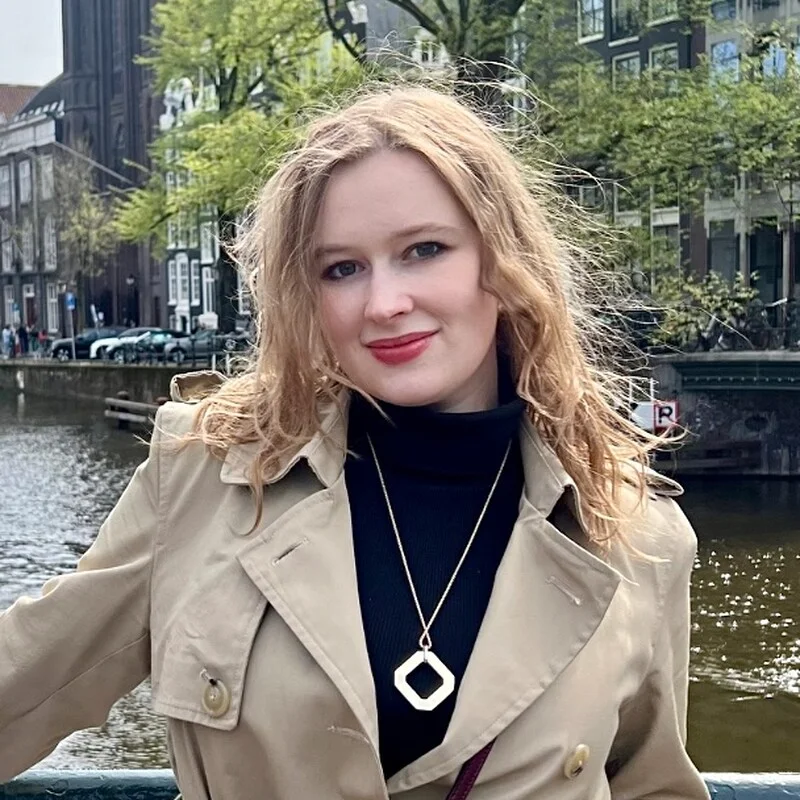
Tatiana is the Growth Marketing Manager at Weavely, where she's spent nearly four years running marketing end to end. From campaign strategy to the SEO content that brings new readers to the platform. Working day to day on a form builder gives her a front-row seat to what actually makes forms, surveys, and landing pages convert, and that's what she writes about here: practical, tested advice on lead generation and form design. Before Weavely, she led brand and SEO work at Digital Leap and cut her teeth on B2B and B2C content at Ruddy. She's based in Brussels.