How to Generate PDF Certificates, Tickets & Receipts from Forms Automatically
Creating PDFs manually for every form submission gets tedious fast. You fill out the same template repeatedly, copy-paste names and dates, fix formatting errors, and hope you didn't miss anyone.
Most people handle this one of two ways: spend hours creating PDFs manually, or pay for expensive document automation software built for enterprise teams. There's a simpler option that works for individuals and small teams: connecting your form builder to a PDF generation tool.
This guide shows you how to automatically generate PDF certificates, event tickets, donation receipts, and other documents whenever someone submits a form. No coding required.
Why Automate PDF Generation from Forms?
Manual PDF creation takes time. If you're issuing certificates for an online course with 50 students, that's 50 times you're opening a template, filling in fields, saving the file, and sending it out. At 3-4 minutes per certificate, you're looking at 2.5 hours of copy-paste work.
The bigger issue is errors. When you're manually entering data, typos happen. Misspelled names on certificates or wrong dates on tickets mean you'll need to regenerate documents and re-send them.
Automation solves both problems. Someone fills out your form, and their PDF generates immediately with the exact information they provided. No copying, no typos, no follow-up emails asking for corrections.
Common Use Cases for Form-to-PDF Automation
Course Completion Certificates
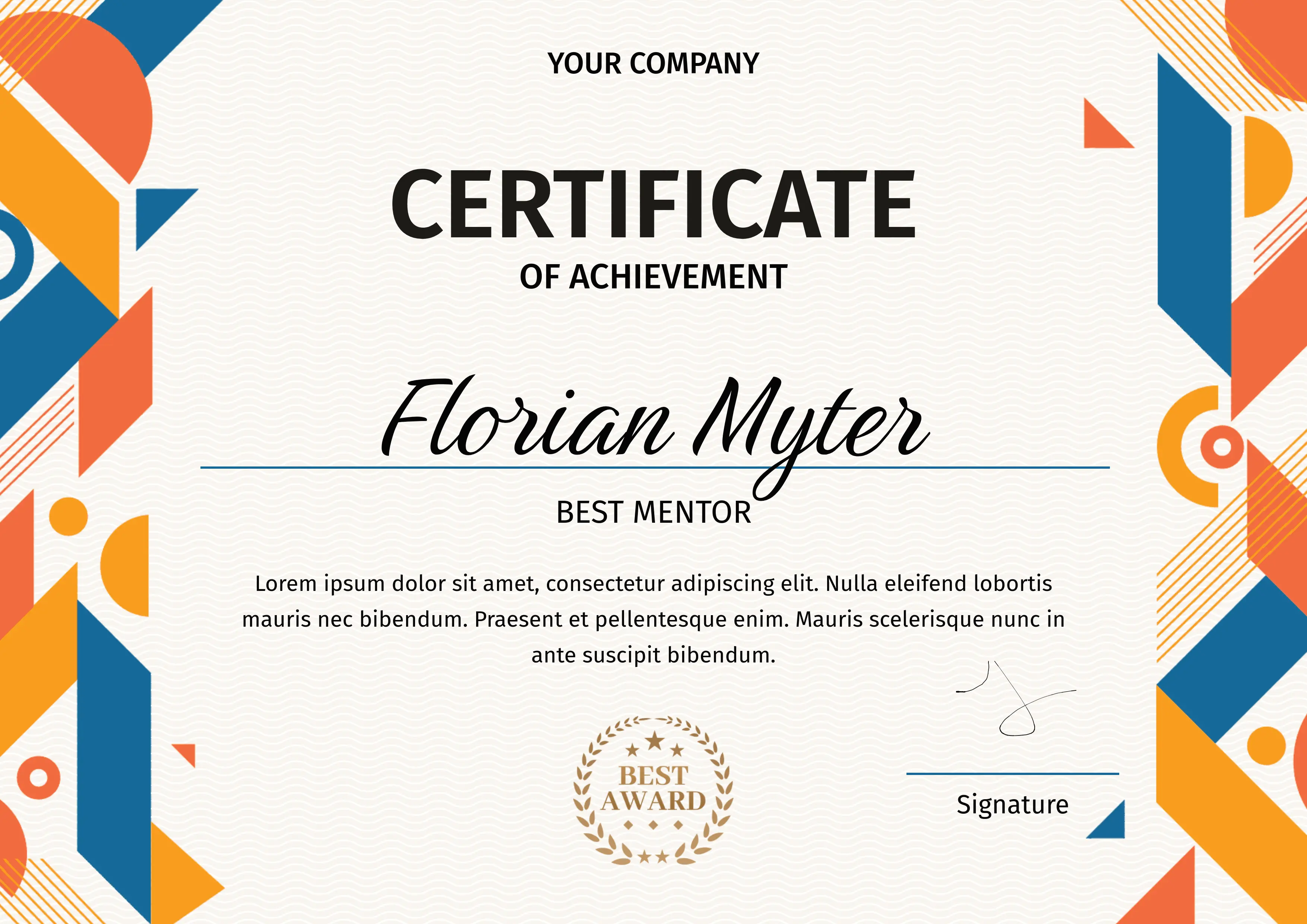
Online course creators need certificates of completion for students who finish their programs. You could use a template and fill it in manually each time, though most people with more than a few students set up automation instead.
The form collects the student's name, course completion date, and sometimes their signature. When they submit, a certificate generates automatically with their information and gets emailed to them within seconds.
Event Tickets

Event organizers use form-to-PDF automation for ticketing. Attendees register through a form, and they immediately receive a PDF ticket with a QR code, event details, and their confirmation number.
This works for conferences, workshops, webinars, and local meetups. The ticket serves as proof of registration and can include important details like the venue address, start time, or what to bring.
Donation Receipts
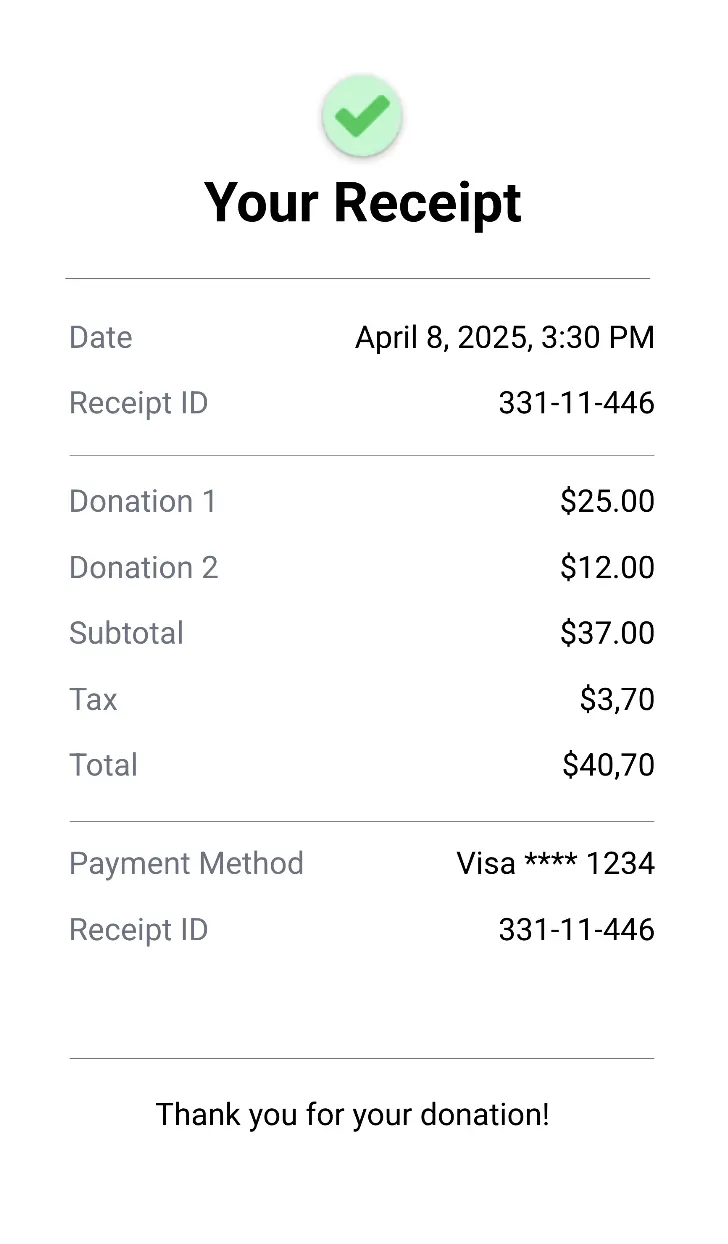
Nonprofits need to provide tax receipts for donations. Manually creating these takes time, especially during fundraising campaigns when donations come in frequently.
A donation form connected to PDF generation creates official receipts automatically. The receipt includes the donor's name, donation amount, date, and your organization's tax ID. Everything donors need for their records.
Registration Confirmations
Summer camps, training programs, and membership organizations use registration confirmations. Parents registering their kids for camp get a PDF with emergency contact information, what to pack, and the schedule.
These confirmations serve as both proof of registration and a reference document participants can print or save.
Booking Confirmations
Hotels, tour operators, and service providers send booking confirmations. The PDF includes reservation details, cancellation policies, and contact information—everything customers need in one document.
How to Set Up Automated PDF Generation: Step-by-Step
This tutorial uses Weavely for form creation and Orshot for PDF generation, though the same process works with other tools. We'll use course completion certificates as the main example since that's one of the most common use cases.
Step 1: Create Your Form
Start by building a form that collects the information you need for your PDF. For a course completion certificate, you'll want fields for first name, last name, and optionally a signature.
In Weavely, describe what you need and the AI generates the form. You can also build forms manually if you prefer more control over field types and styling.
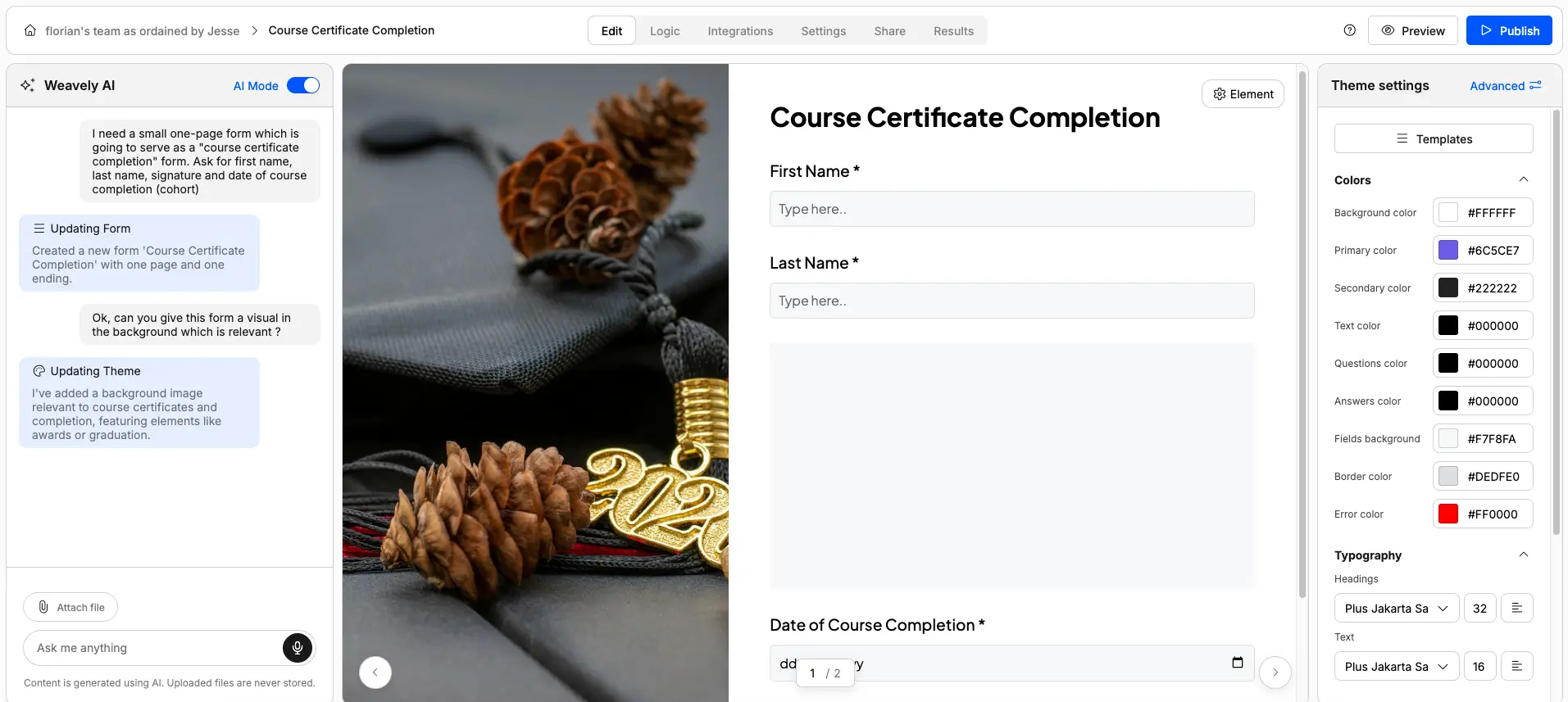
Make sure your form collects all the data you'll need in your PDF. If your certificate template has a field for "Course Name," your form should either ask for that or use a hidden field that automatically populates with the course title.
Step 2: Design Your PDF Template
In Orshot, either choose a pre-made template or design your own in their PDF studio. For certificates, you'll want fields for the recipient's name, completion date, and signature.
The key is to parametrize any field that should pull data from your form. Instead of typing "John Smith" directly on the certificate, you create a variable field like {name} that will fill in automatically.
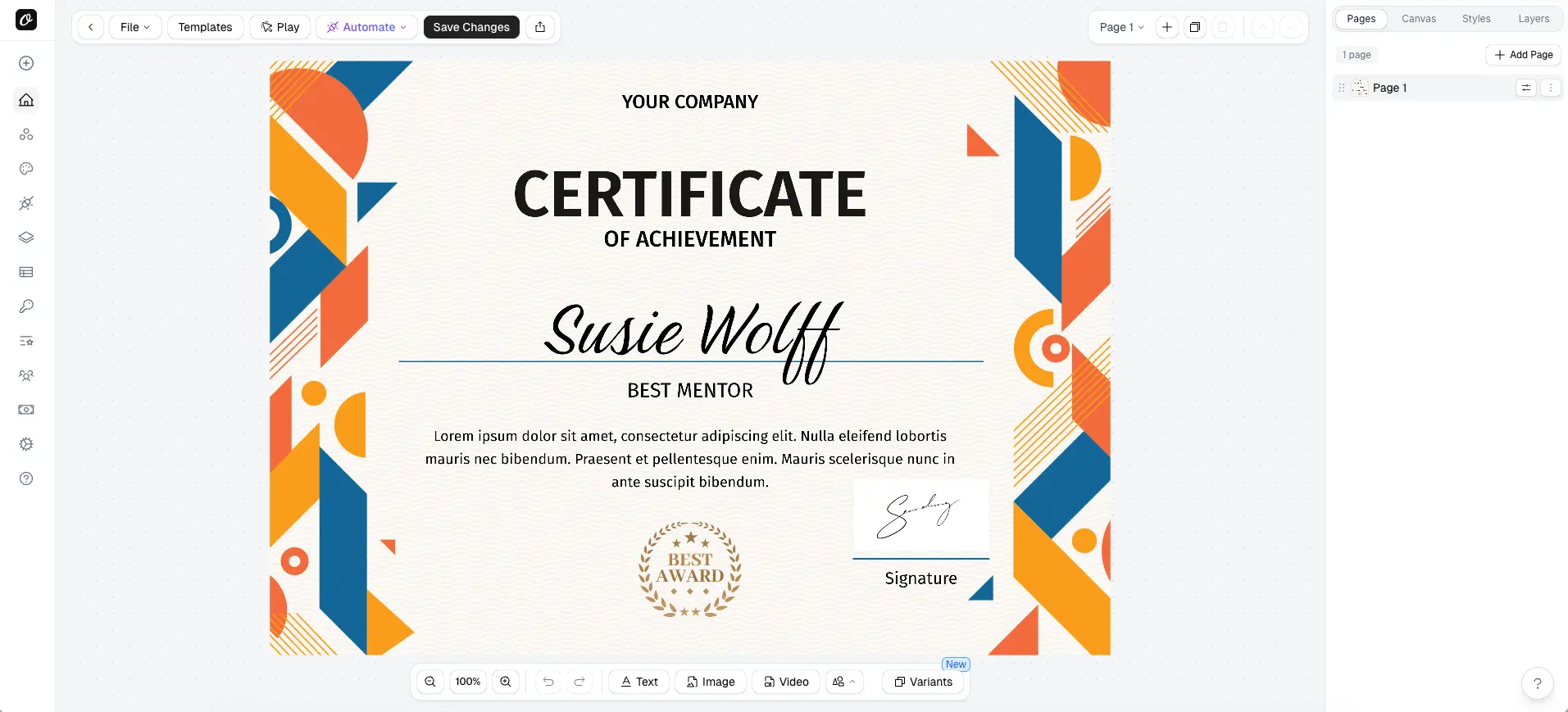
Orshot has templates for certificates, tickets, receipts, and invoices. You can customize colors, fonts, logos, and layout to match your branding.
Step 3: Connect Your Form to Orshot
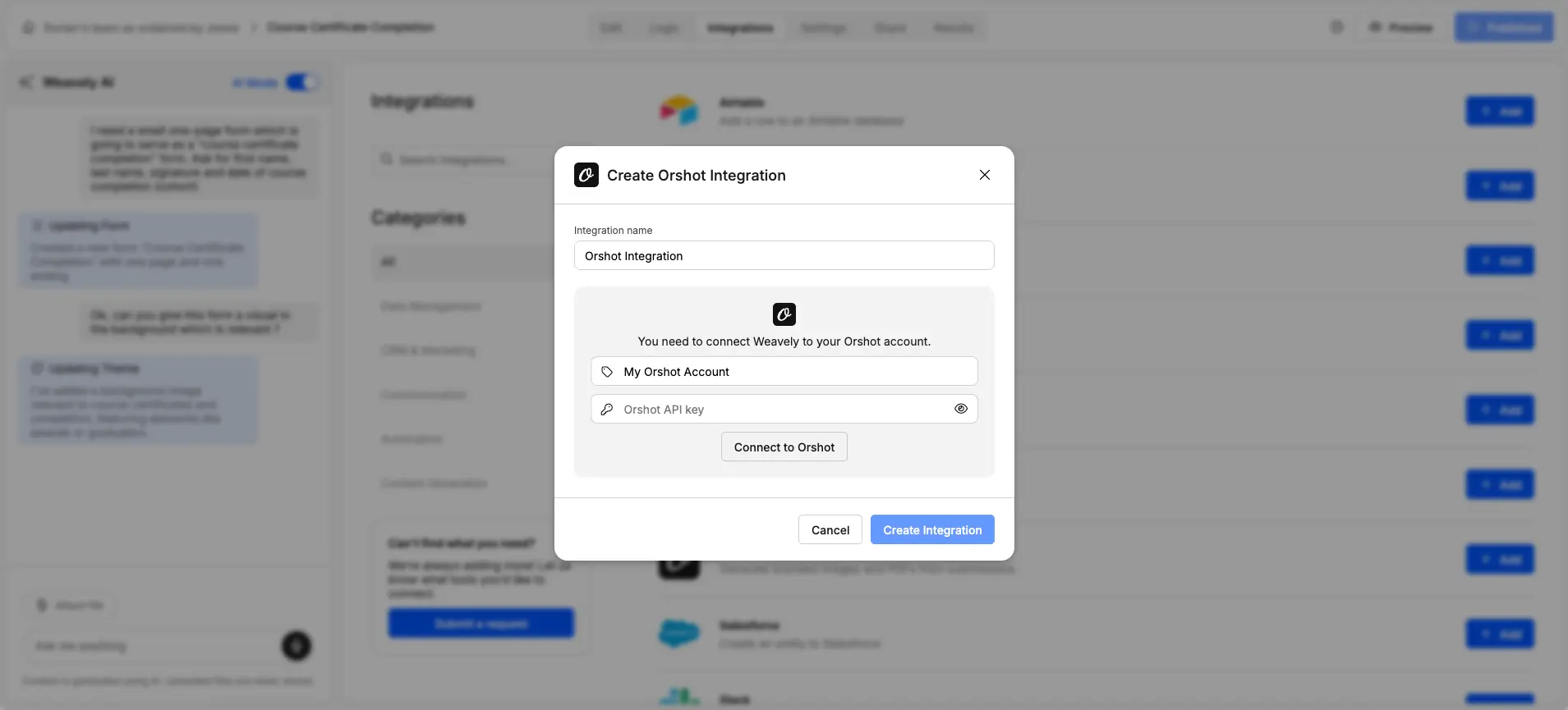
In your Orshot account, go to API Keys and copy your key. Then in Weavely, navigate to Integrations and select Orshot.
Paste your API key and click Connect. Your Orshot templates will load automatically in the dropdown.
Step 4: Map Form Fields to PDF Variables
This is where you tell the system which form fields should populate which PDF variables. If your certificate has a {name} field, you'll map it to pull from your form's "First Name" and "Last Name" fields.
You can combine multiple form fields into one PDF field. For example, to show "John Smith" on the certificate, map the name field to "@First Name @Last Name" (with a space in between).
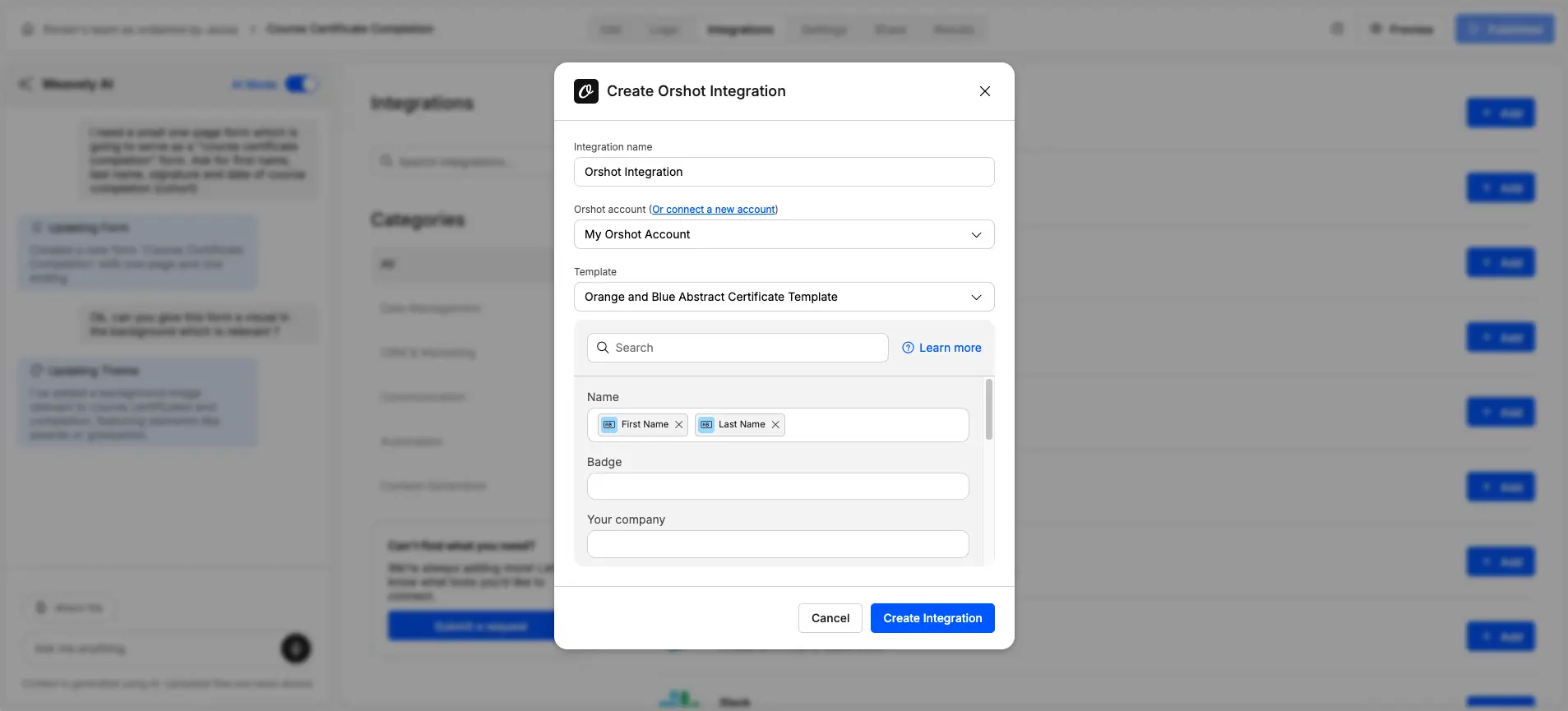
For a signature field, just select your form's signature element. The signature image will automatically populate in the PDF.
Step 5: Test the Automation
Submit a test response to your form. Check that the PDF generates correctly in your Orshot account under the template's "Renders" section.
Look for common issues like missing spaces between names, incorrect date formatting, or misaligned signature images. You can adjust the mapping and retest until everything looks right. Once you're happy with the output, your automation is live. Every new form submission will generate a PDF automatically.
Customization Tips
Adding Your Logo
Upload your organization's logo to the PDF template in Orshot. Position it where you want it to appear, usually in the header or footer. The logo will appear on every generated PDF automatically.
Combining Multiple Form Fields
You can map several form fields to a single PDF variable. This works for combining first and last names, or building an address from separate street, city, and state fields.
Use the @ symbol to select form fields, and type any literal text (like spaces or commas) between them.
Using Different Templates for Different Scenarios
If you need different certificate designs for different courses, you can set up multiple integrations. Namely one for each template. Or use conditional logic in Orshot to apply different templates based on form data.
Setting Up Other Use Cases
The process above works for any type of PDF. Here's how to adapt it for other common use cases:
Event Tickets
Create a form that collects attendee name, email, and ticket type. In your ticket template, include event details (date, time, venue) as static text and add variables for the attendee's name and a unique ticket ID.
Use Orshot's QR code feature to generate a unique code for each ticket. The QR code can contain the ticket ID for scanning at check-in.
Donation Receipts
Your donation form should collect donor name, email, donation amount, and date. The receipt template includes your organization's legal name, tax ID (as static text), and variables for the donor's information.
Make sure to include required IRS language for tax-deductible donations if you're a registered nonprofit.
Registration Confirmations
Collect all registration information upfront: participant name, emergency contacts, special requirements, etc. Your confirmation PDF can be multiple pages if needed, with different sections for different information.
This works well for summer camps, training programs, or membership sign-ups where participants need a comprehensive reference document.
Tools You'll Need
Weavely - Form builder with AI generation. Free plan available. Works for surveys, registration forms, applications, and data collection.
Orshot - PDF generation tool with a visual editor. Connects to form builders via API. Has pre-made templates and custom design options.
Both tools have free tiers you can use to test the automation before committing to a paid plan.
Frequently Asked Questions
Do PDFs generate immediately after someone submits the form?
Yes, generation happens within seconds of submission. The speed depends on your PDF's complexity, but most documents generate in under 5 seconds.
Can I automatically email the PDF to the person who filled out the form?
Yes, you can configure automatic email delivery in Orshot. The PDF gets sent to the email address collected in your form.
What if someone needs a corrected PDF?
You can manually regenerate PDFs in Orshot by editing the data and creating a new render. Or you can let people resubmit the form if they made an error.
Can I use this for forms with hundreds of submissions?
Yes, the automation scales. Whether you get 10 submissions or 1,000, each one generates its PDF automatically. You're only limited by your Orshot plan's monthly render allowance.
Do I need coding skills to set this up?
No coding required. The entire setup happens through visual interfaces, you're just selecting form fields from dropdowns and mapping them to PDF variables.

Florian is the co-founder and CEO of Weavely, where he does a bit of everything: from product and fundraising to making YouTube videos and writing for the blog. He holds a PhD in computer science and sits on the board of No Code Belgium, the country's no-code community, after more than seven years as a researcher and business developer at Vrije Universiteit Brussel. He writes the hands-on tutorials here, drawing on both an academic background and the day-to-day reality of building a form tool from the ground up. Based in Brussels.