Google Forms App vs Weavely: Building Forms on Mobile in 2026
Ever needed to whip up a quick survey while waiting for your coffee? Or maybe you're commuting and suddenly remember you need a contact form ready by end of day? Yeah, we've all been there. The question is: can you actually build a form or survey on your phone without wanting to throw it out the window?
Good news: yes, you can. The real question is which tool makes it actually pleasant to do so.
In this guide, we're putting two mobile form builders head-to-head: the classic Google Forms app versus the AI-powered Weavely.ai. We'll show you exactly how each one works on mobile, which is faster, and which one won't make you regret leaving your laptop at home.
Can You Use Google Forms on Mobile?
Short answer: yes, absolutely. Google Forms works on mobile devices through your phone's browser, and it's completely functional.
Long answer: it works, but it's not exactly designed with mobile-first UX in mind. The interface is a bit cluttered on smaller screens, and building forms involves a lot of tapping through dropdown menus and manually adding each field one by one.
That said, Google Forms is responsive, meaning everything you can do on desktop is technically available on mobile. You can:
- Create new forms from scratch
- Add different question types (short answer, multiple choice, checkboxes, etc.)
- Customize settings and required fields
- Publish and share your form via link
- View responses and basic analytics
The experience just isn't as smooth as you might hope when you're working with a 6-inch screen and your thumbs.
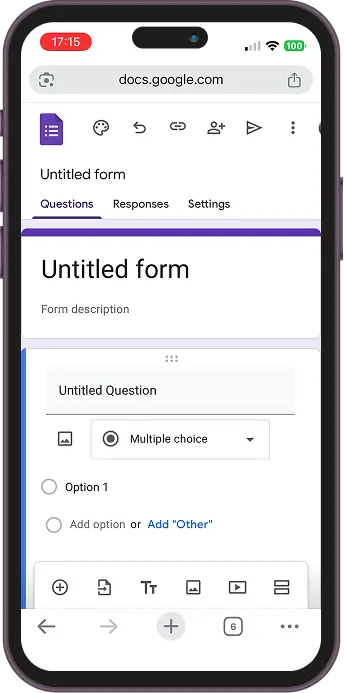
How to Create a Form with Google Forms on Mobile
Let's walk through building a simple contact form on your phone using the Google Forms app (or mobile browser). We'll keep it basic: name, email address, and a "how did you hear about us?" checkbox.
Step 1: Start a New Form
Open Google Forms in your mobile browser (forms.google.com) and tap the "+" button to create a blank form. You'll see the familiar Google Forms interface, just... smaller.
Step 2: Add Your Questions
Here's where the manual work begins. For each field you want to add:
- Tap on the question placeholder
- Type your question (e.g., "What's your name?")
- Tap the dropdown menu to select the question type
- Choose "Short answer" for text fields like name and email
- Tap the "+" button to add another question
- Repeat the process for each field
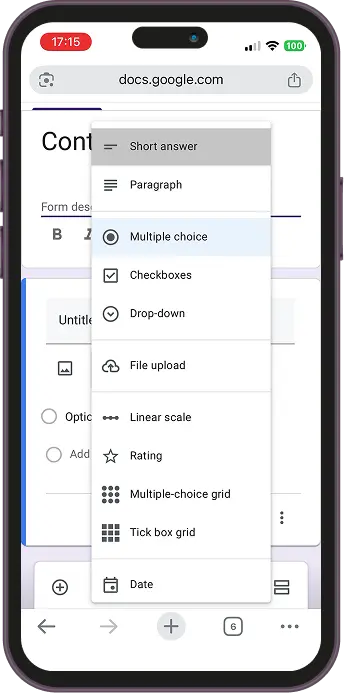
Step 3: Add Checkboxes with Multiple Options
For the "How did you hear about us?" question, you'll need to:
- Select "Checkboxes" from the question type dropdown
- Tap "Option 1" and type your first option (e.g., "Social media")
- Tap "Add option" for each additional choice
- Manually type out each option one by one
This is where the mobile experience gets a bit tedious. Every option requires individual tapping and typing.
Step 4: Publish Your Form
Once your form is ready, tap the send button (the one that looks like a flying paper airplane) at the top of the screen. Google will generate a shareable link that you can copy and send to your respondents.
.webp)
Step 5: View Your Responses
To check responses, tap the "Responses" tab. You'll see:
- Individual response data in a list format
- Summary charts and graphs for each question
- The ability to export to Google Sheets
Google Forms does a decent job visualizing data on mobile, with automatic charts for multiple-choice and checkbox questions.
The Google Forms Mobile Experience: Pros and Cons
Let's be real about what works and what doesn't:
- ✅ Completely free with unlimited forms and responses
- ✅ Familiar interface if you've used it before on desktop
- ✅ Fully functional – everything works, nothing is disabled
- ✅ Integrated with Google Workspace for teams already using it
- ✅ Automatic data visualization with charts and graphs
- ❌ Cluttered mobile interface that feels cramped
- ❌ Manual, time-consuming setup for each field and option
- ❌ Lots of tapping through menus to change question types
- ❌ Not optimized for touch – designed for mouse and keyboard first
The verdict: Doable, but not exactly delightful.
How to Build Forms on Mobile with Weavely AI
Now let's look at the radically different approach: building forms by simply telling an AI what you need.
Weavely.ai is an AI-native form builder designed with mobile in mind. Instead of manually clicking through menus and typing out every field, you just describe what you want and the AI builds it for you.
Here's how it works:
Step 1: Describe Your Form in Plain English
Open Weavely.ai on your phone and type (or speak) what you need. Something like:
"I need a contact form with fields for name, email address, and a checkbox asking how they heard about us with options for social media, Google search, friend referral, and other."
That's it. Just describe it like you're talking to a person.
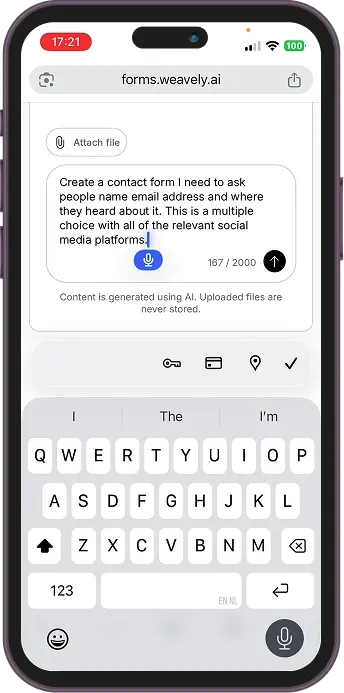
Step 2: Let the AI Build It
Hit the generate button and wait about 5-10 seconds. The AI will:
- Create all your form fields automatically
- Choose appropriate field types (text input for name, email validation for email, checkbox for multiple options)
- Populate the checkbox options you specified
- Even suggest additional relevant options based on context
When you preview the form, everything is already there. Name field? Check. Email field? Check. Checkbox with all your options? Check, check, check.
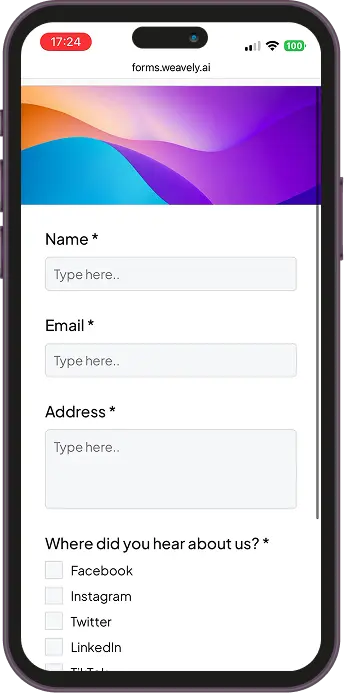
Step 3: Tweak If Needed (Or Don't)
The AI usually gets it right on the first try, but if you want to adjust anything, you can:
- Edit field labels and descriptions
- Add or remove options
- Change question types
- Reorder fields with a simple drag
The interface is optimized for mobile, so everything is touch-friendly and easy to tap.
Step 4: Publish in One Click
Ready to go? Tap the "Publish" button. You'll get a shareable link instantly. No complicated menus, no extra steps.
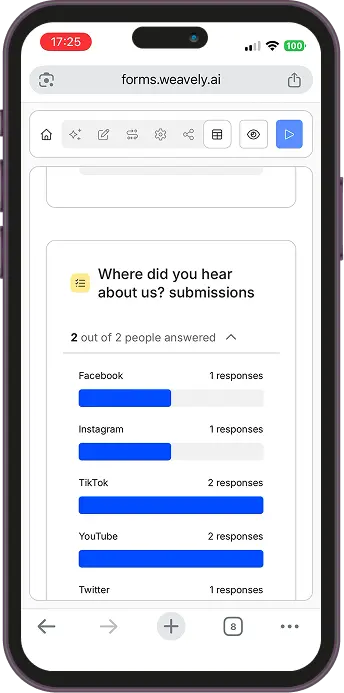
Step 5: View Analytics
Weavely provides the same analytics capabilities as Google Forms:
- Individual response data in a table view
- Visual charts and graphs for each question type
- The ability to export your data
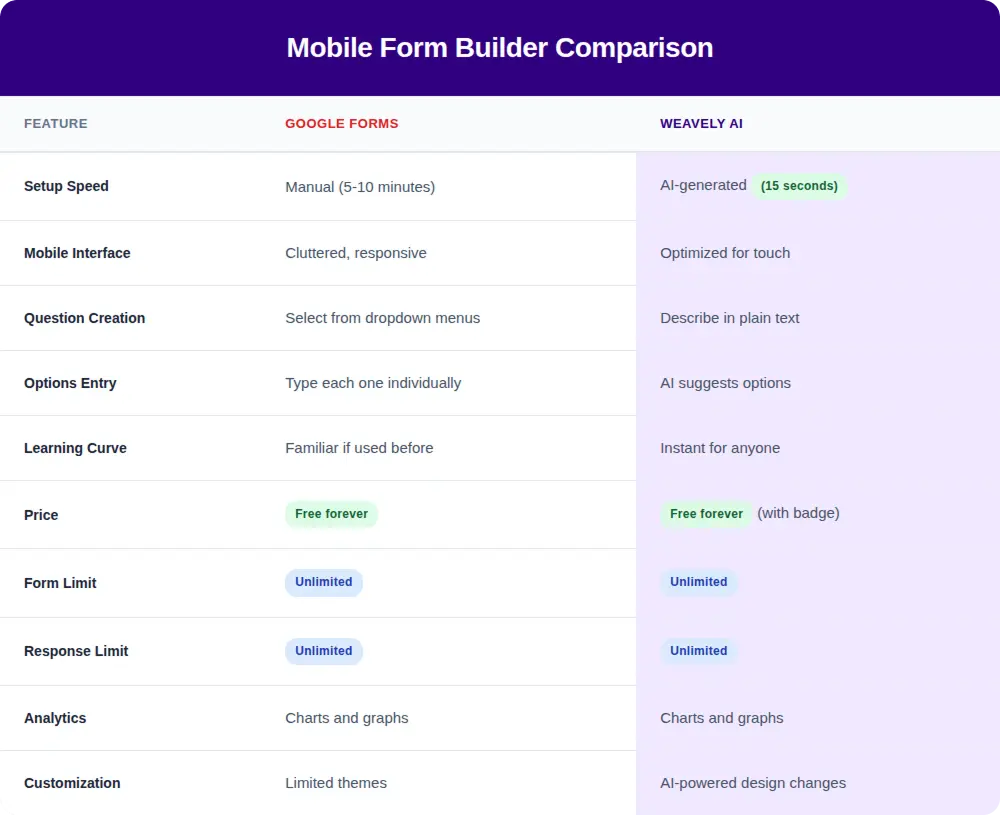
Google Forms vs Weavely on Mobile: The Side-by-Side Comparison
Which Mobile Form Builder Should You Choose?
Here's the honest truth: both tools work on mobile, and both are completely free.
Choose Google Forms if:
- You're already deep in the Google Workspace ecosystem
- You need forms stored in your organization's Google Drive
- You're comfortable with the manual setup process
- You prefer familiar interfaces over new tools
Choose Weavely.ai if:
- You want to build forms as fast as humanly possible
- You're creating forms on your phone regularly
- You value a mobile-optimized interface
- You want AI to handle the tedious setup work
Look, we're obviously biased here, we built Weavely. But watch the video above and judge for yourself. The speed difference is real, and the mobile experience is genuinely smoother. For anyone who needs to build forms on the go, AI is simply faster than clicking through menus.
And since Weavely is free with unlimited forms and unlimited responses (you just get a "Generated by Weavely" badge), there's no reason not to try both and see which one clicks for you.
Best Practices for Building Forms on Mobile (Either Tool)
Whether you go with Google Forms or Weavely, here are some tips for mobile form creation:
- Keep it short – Mobile users have limited patience. Ask only essential questions.
- Use clear labels – Small screens mean every word counts.
- Test on your phone – What looks good in the builder might feel different when actually filling it out.
- Enable email validation – Prevents typos in email addresses.
- Add a thank you message – Let respondents know their submission went through.
- Check mobile preview – Both tools let you preview how your form looks to respondents.
Frequently Asked Questions
Can you make a Google Form on your phone?
Yes, you can create Google Forms on your phone through a mobile browser. The interface is responsive and fully functional, though it's not specifically optimized for mobile use. You'll be able to add questions, customize settings, and publish your form, but the experience involves more tapping and scrolling than a mobile-first tool.
Is there a Google Forms mobile app?
Google Forms doesn't have a dedicated mobile app for creating forms. However, you can access the full Google Forms builder through your mobile browser at forms.google.com. For filling out forms, respondents can complete Google Forms on any mobile browser without needing an app.
How do I use Google Forms on my phone?
To use Google Forms on your phone, open your mobile browser and go to forms.google.com. Sign in with your Google account, create a new form, and use the touchscreen interface to add questions, select question types from dropdown menus, and customize your form. Once complete, tap the send button to generate a shareable link.
What is the best mobile form builder?
The best mobile form builder depends on your needs. Google Forms works well if you're already using Google Workspace and don't mind manual setup. Weavely AI is faster for mobile creation since you can describe your form in plain text and have AI build it instantly, with an interface optimized for touchscreens.
Can I edit Google Forms on mobile?
Yes, you can edit existing Google Forms on mobile by opening them in your mobile browser. All editing features available on desktop work on mobile, including adding/removing questions, changing question types, and modifying form settings. The interface is just more compact.
How do I create a form on my iPhone or Android?
To create a form on iPhone or Android, you can either use Google Forms through your mobile browser (forms.google.com) or use a mobile-optimized tool like Weavely.ai. Both work on iOS and Android devices. For the fastest mobile experience, AI-powered form builders like Weavely let you describe what you need instead of manually building each field.
Is Weavely free to use on mobile?
Yes, Weavely is completely free to use on mobile with unlimited forms and unlimited responses. The free tier includes all core features and AI form generation. You'll have a "Generated by Weavely" badge on your forms, but if you're building forms in a hurry on your phone, that's a small trade-off for the speed and convenience.
Can Google Forms work offline on mobile?
Google Forms requires an internet connection to create and edit forms on mobile. However, if you're filling out a form as a respondent, Google Forms can save your responses and submit them once you're back online (if the form creator has enabled offline mode).

Tatiana is the Growth Marketing Manager at Weavely, where she's spent nearly four years running marketing end to end. From campaign strategy to the SEO content that brings new readers to the platform. Working day to day on a form builder gives her a front-row seat to what actually makes forms, surveys, and landing pages convert, and that's what she writes about here: practical, tested advice on lead generation and form design. Before Weavely, she led brand and SEO work at Digital Leap and cut her teeth on B2B and B2C content at Ruddy. She's based in Brussels.