5 essential automations for a form builder (with Weavely x viaSocket)
Building a form and collecting responses is one thing. Working with data is a whole new dimension. In many cases, you need that data to flow directly into other tools, not just sit in a CSV file. Weavely makes this easier by offering native integrations with platforms like HubSpot, Notion, and more. It also works seamlessly with automation tools like Make, Zapier, and viaSocket, so you can connect your form data to thousands of apps!
Still, automation may seem confusing if you’re not familiar with it and not sure where to begin. In this article, we’ll highlight five useful automations you can set up for Weavely with the help of viaSocket to streamline your work and save time.
1. Sync Weavely form data to your storage tools
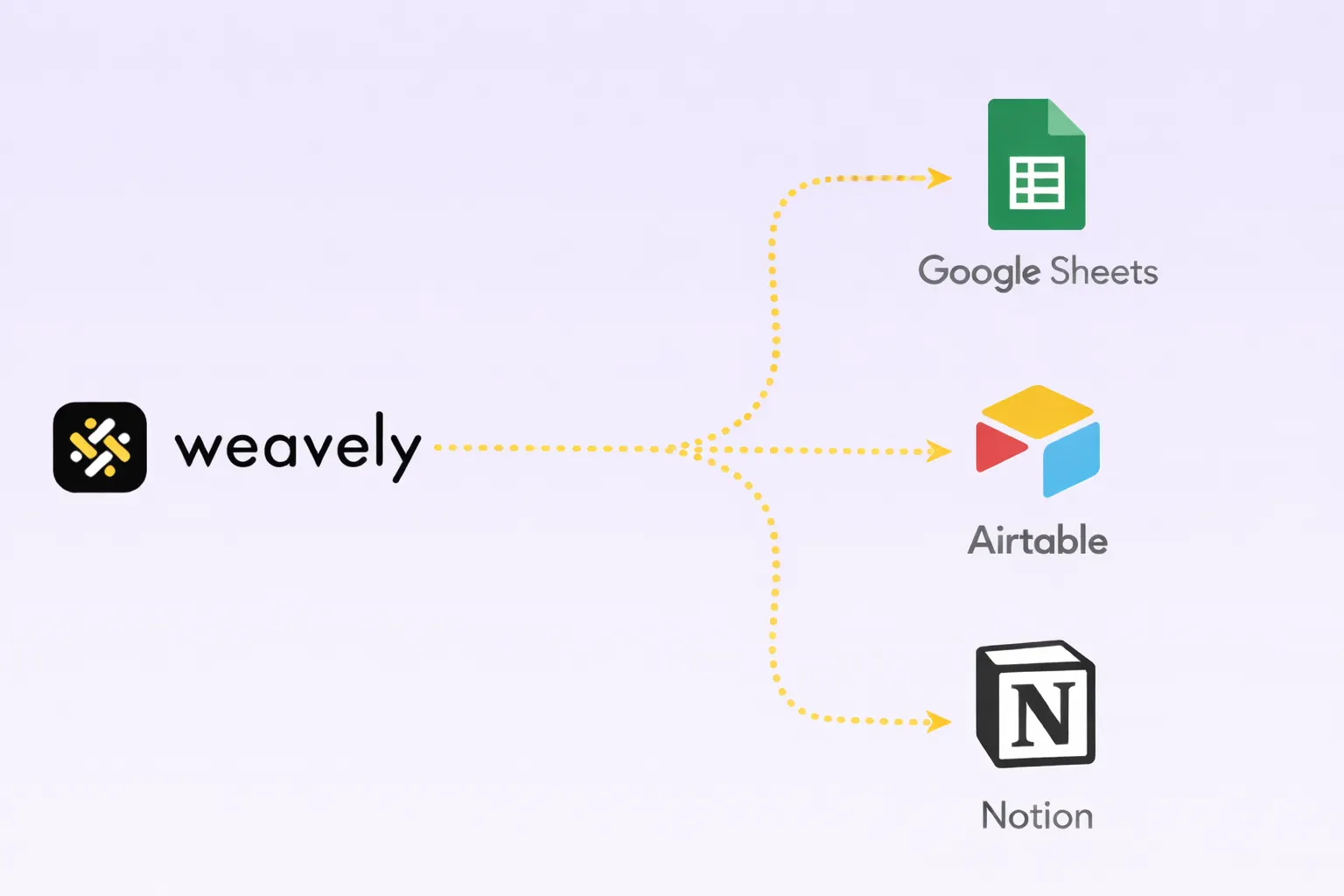
Once a form is submitted, one of the most common next steps is storing that data in a place dedicated to record-keeping, reporting, or collaboration. With Weavely, you can automatically send form responses to tools like Google Sheets, Airtable, or Notion.
This allows you to:
- Maintain a central database of submissions
- Share access with team members
- Build dashboards or custom views without manual data entry
If you're using a tool like viaSocket, you can even route the data to multiple destinations at once. For example, storing the submission in Airtable and logging it in Notion simultaneously.
2. Send notifications on submission
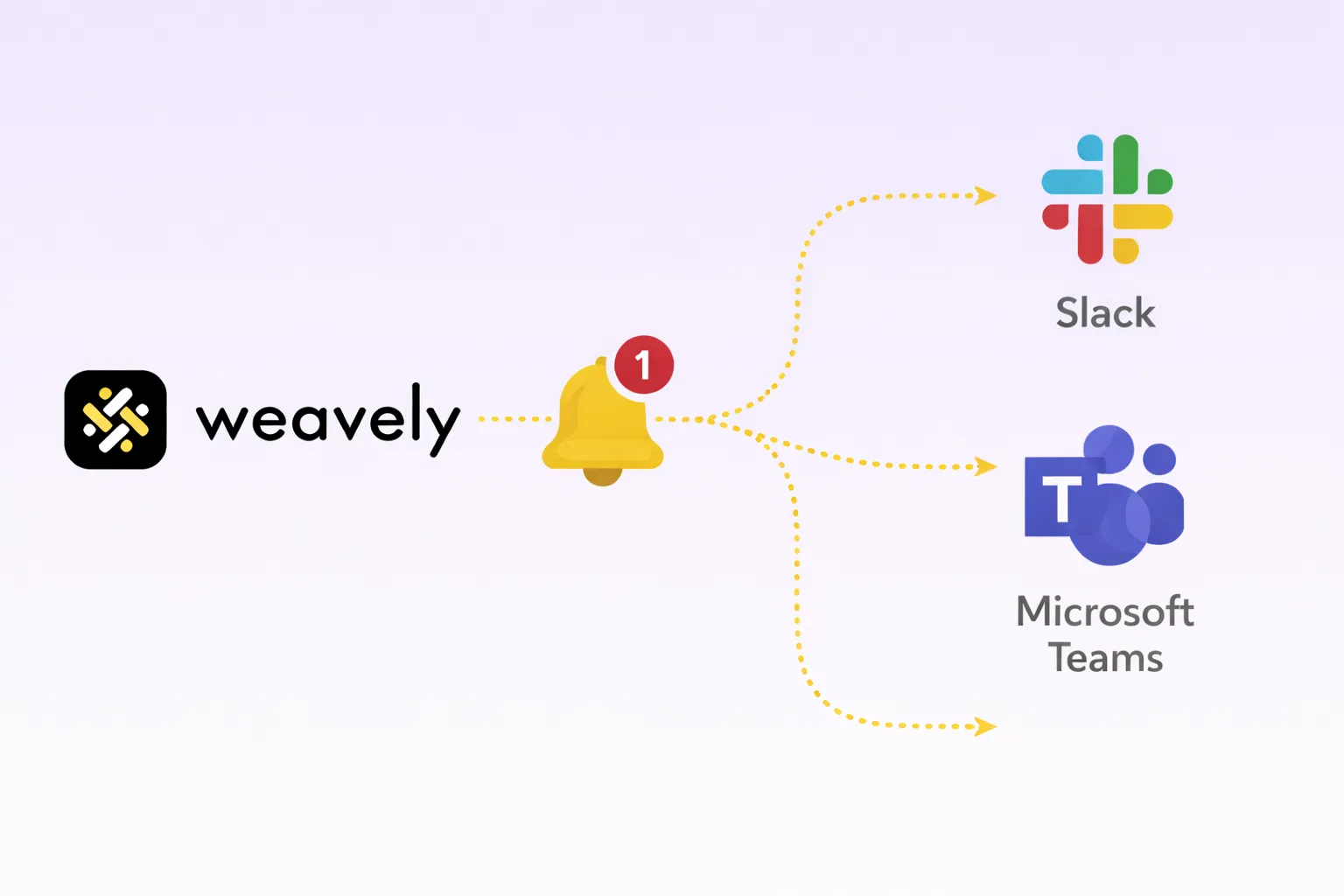
If being alerted that respondents completed your form or survey is time-sensitive, it's best to set up a notification automation. This way, you don't need to waste time on manually checking the results dashboard in Weavely.
With viaSocket, form events in Weavely trigger Slack pings, Discord alerts, or even email updates that land exactly where you need them. To do so, just set up a workflow in viaSocket where Weavely is the trigger app (new form submission) and Slack is the action app (send message), then map the form fields into your Slack message and activate the integration.
3. Integrate contact info from the forms with your CRM
.webp)
Syncing leads with a CRM platform is one of the most popular use cases for a form builder.
If you have a contact or lead generation form on your website, it's logical you'd want all of the submissions added to HubSpot, Salesforce, Zoho, Pipedrive, or any other CRM of yours.
By integrating with viaSocket you can make sure the contacts are created, tagged, and ready for follow-up.
It’s like this: Form submission → CRM contact → automated welcome or sales flow.
4. Trigger tasks in your project management tool
.webp)
Form submissions often represent a new task, like a bug report, a content request, or a client onboarding form. Instead of manually turning that input into action, you can connect Weavely to tools like Trello, Asana, or Notion to auto-generate tasks or cards.
This ensures the right team sees the submission and starts working on it immediately. With viaSocket, you can even map different form types to different boards or task lists.
5. Trigger email sequences with marketing tools
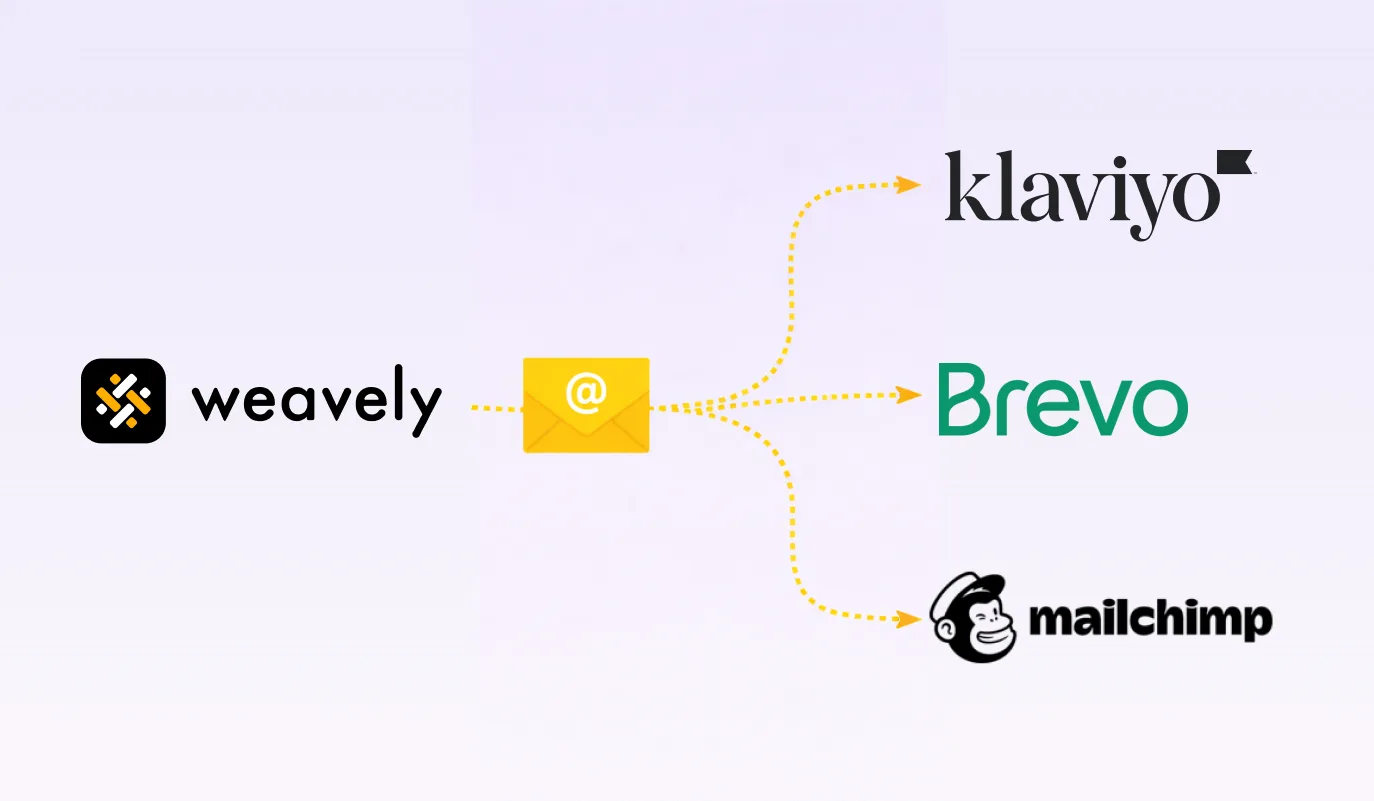
If you’re using Weavely as part of a broader marketing funnel, it makes sense to sync form data with your email or automation platforms, like Mailchimp, Klaviyo, BigCommerce or Brevo.
If a potential customer fills out a form to download a whitepaper, join a waitlist, or learn more about your product, it's the moment when you need to immediately follow-up. With the Weavely + viaSocket integration, you can trigger email sequences the moment a submission happens.

Tatiana is the Growth Marketing Manager at Weavely, where she's spent nearly four years running marketing end to end. From campaign strategy to the SEO content that brings new readers to the platform. Working day to day on a form builder gives her a front-row seat to what actually makes forms, surveys, and landing pages convert, and that's what she writes about here: practical, tested advice on lead generation and form design. Before Weavely, she led brand and SEO work at Digital Leap and cut her teeth on B2B and B2C content at Ruddy. She's based in Brussels.